How to do it
Name the room as soon as you close it
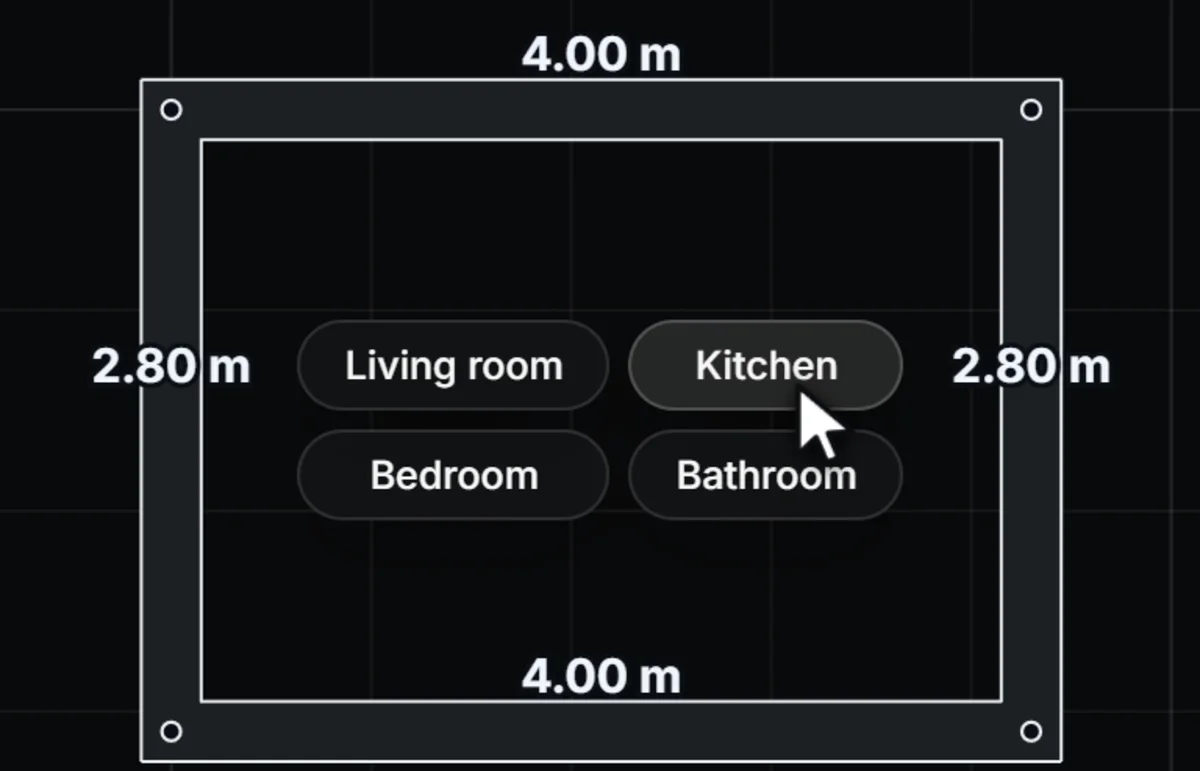
As soon as you close a room, four names appear in the middle: click Living room, Kitchen, Bedroom or Bathroom; for another name use Room names (7), and clicking a name fixes it.
Add a door with the +
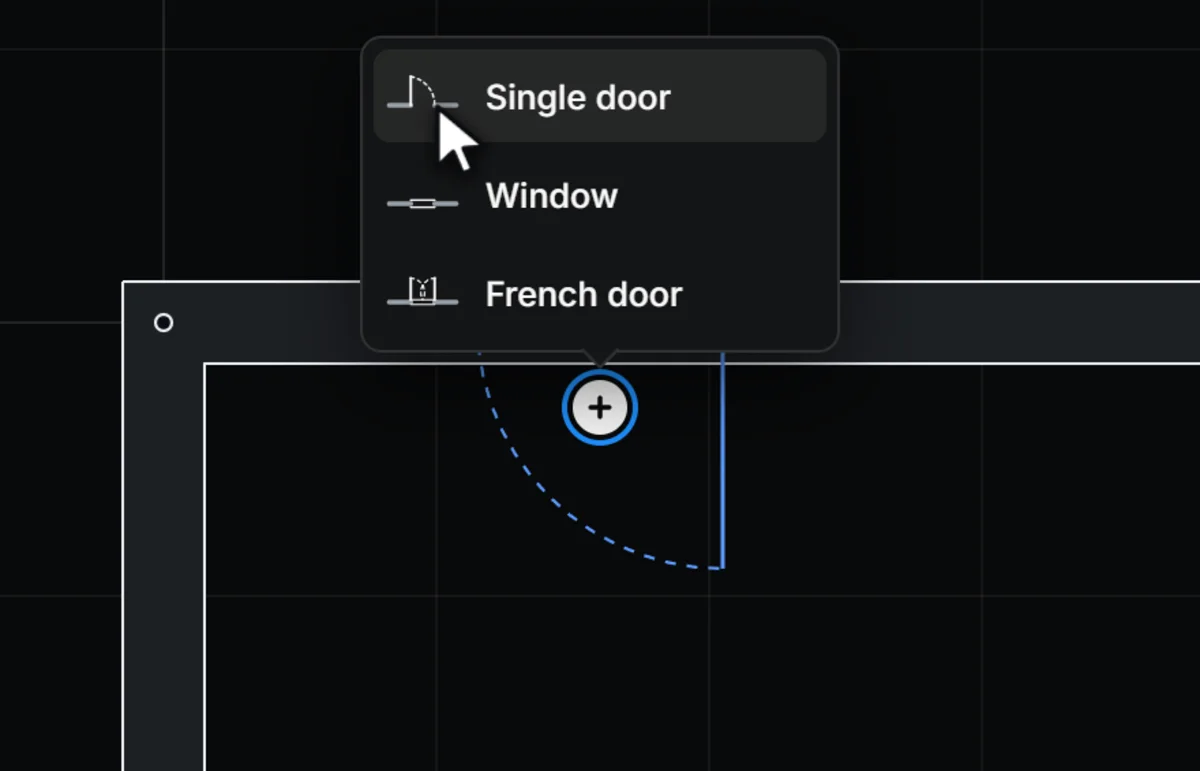
With Select, hover over the wall and click the + that appears next to it: pick Single door, Window or French door and it goes straight into the wall.
Type the distance from the corner
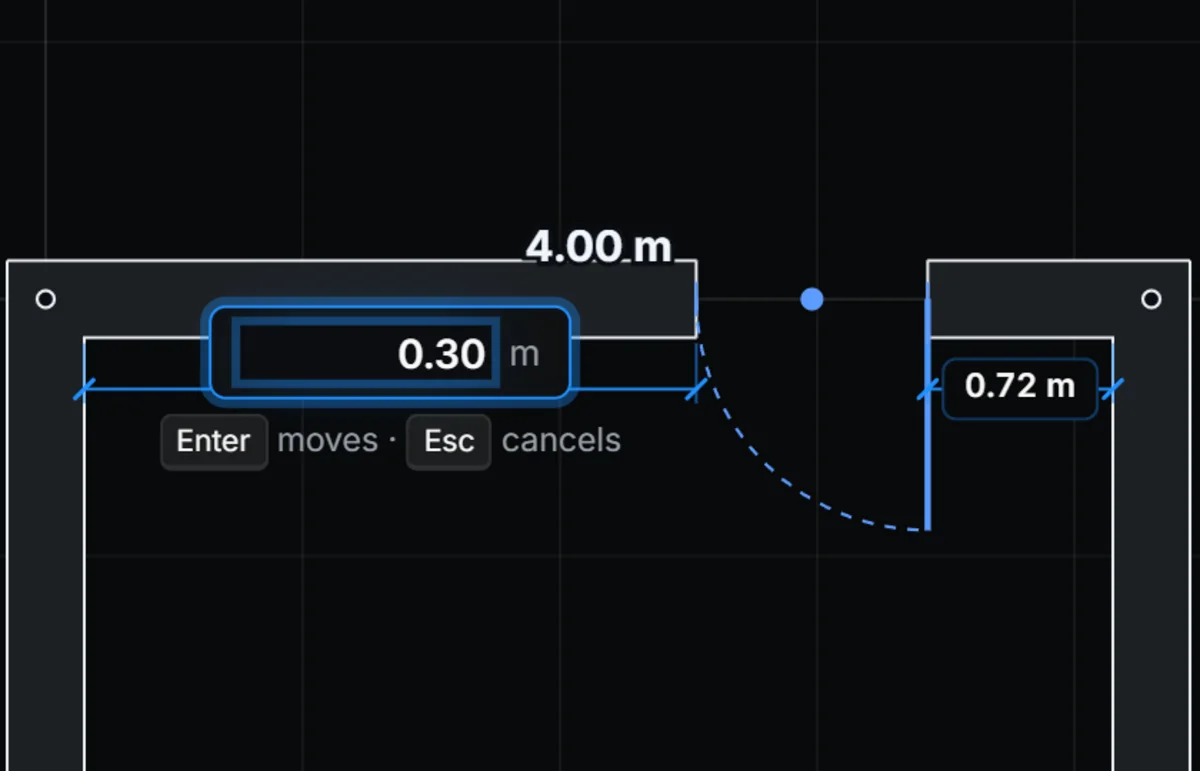
Next to the selected door you see its two distances from the corners: click the one you want to change, type it in metres (for example 0.30) and press Enter: the door moves there.
Make it open the right way
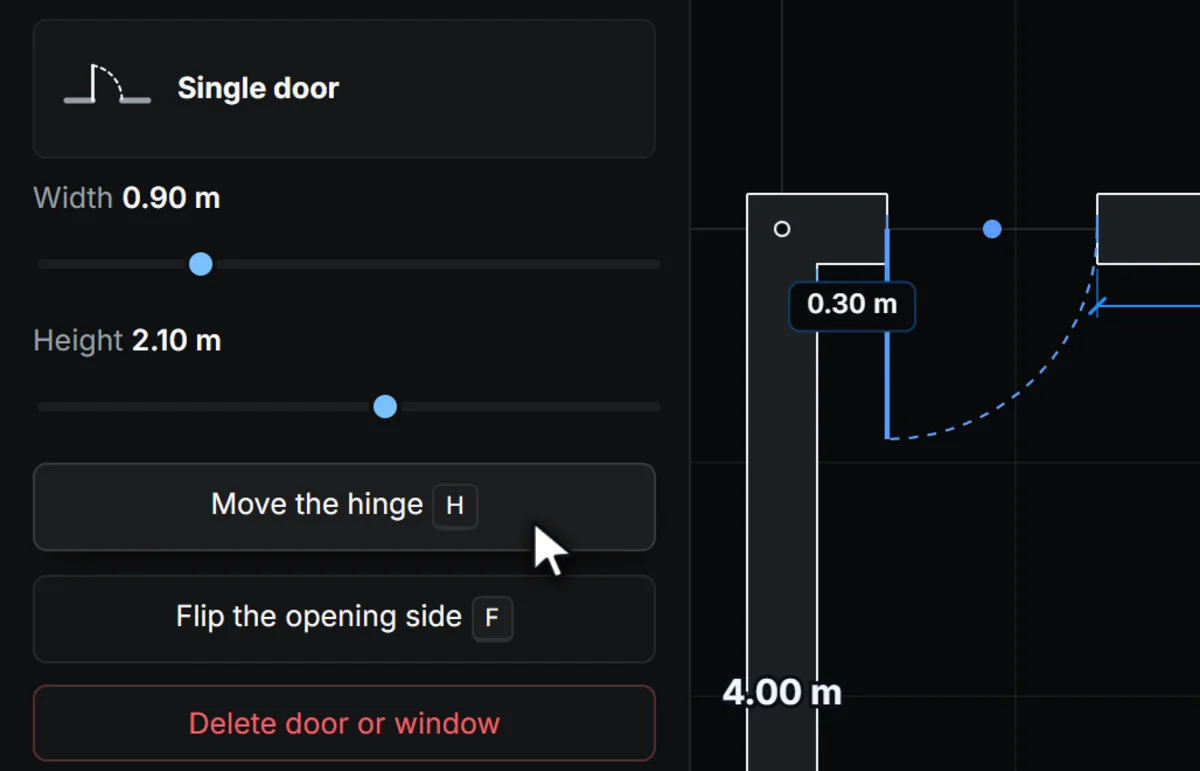
In the left-hand column, Move the hinge (H) and Flip the opening side (F) set which way the selected door opens.
Add a window or a glazed wall
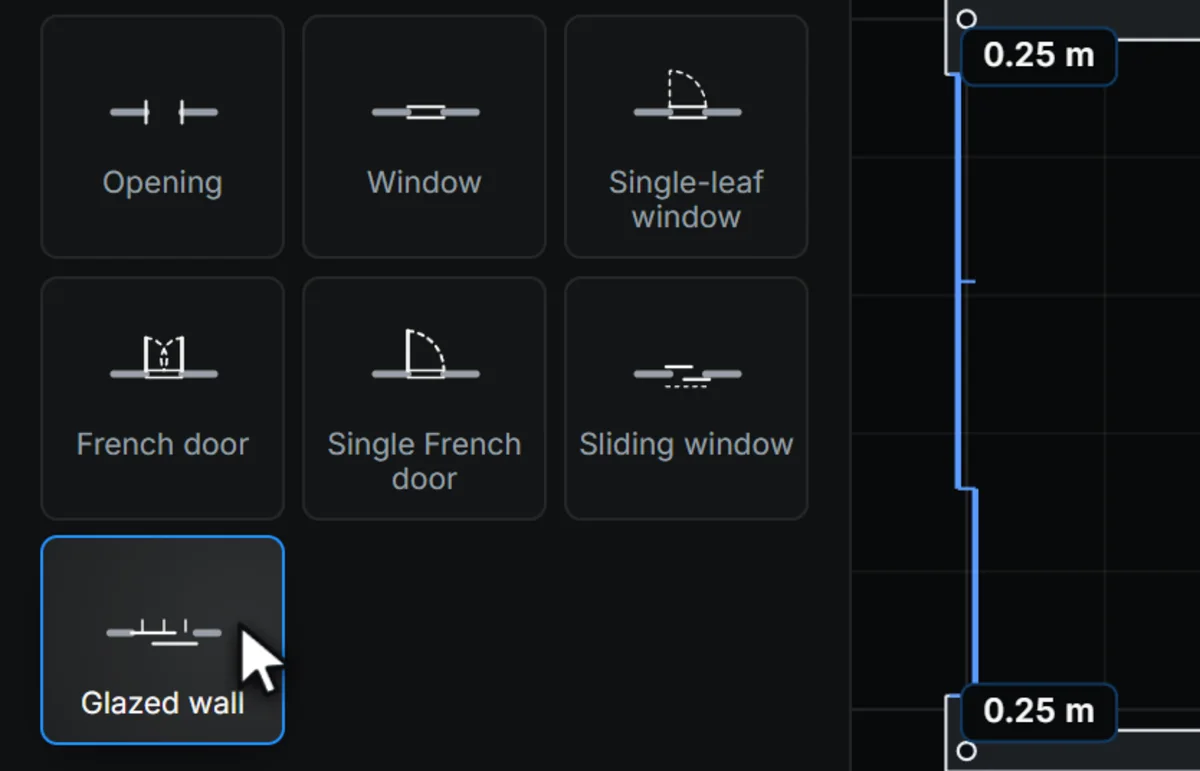
Add a Window with the + the same way and set its Width, Height from the floor and Opening height with the sliders; drag a Glazed wall from its card in Doors and windows.
What you learned
- Name a room with one click, as soon as you close it.
- Add doors and windows with the + that appears on the wall.
- Move a door by typing its distance from the corner.
- Make a door open the right way.
Good to know
- If the preview turns red, it won't fit there: a Glazed wall, for instance, starts out 4.50 m wide and needs a wall at least that long. You measure how far doors and windows are from the corner on site, with a tape measure: the guide to measuring a house for a floor plan shows how. In the drawing you type it in metres; with the door or window selected, U switches to centimetres or another unit. The sliders for doors and windows move in steps of 5 cm: width, height and height from the floor are set by dragging them, not typed.
- To colour a door or window, go to the 3D view, click it and pick one of eight colours.
- The + appears with Select, on straight walls; on an iPad, tap the wall. If you don't see it, open Doors and windows in the left column, click a card, then the wall: it stays in your hand until you press Esc. That's also where you find the Double door, the Sliding door and the others. In the basement the + only offers Single door and Opening: windows go from the ground floor up. On a phone you can look at a project but not draw.