How to do it
Find a piece of furniture and place it
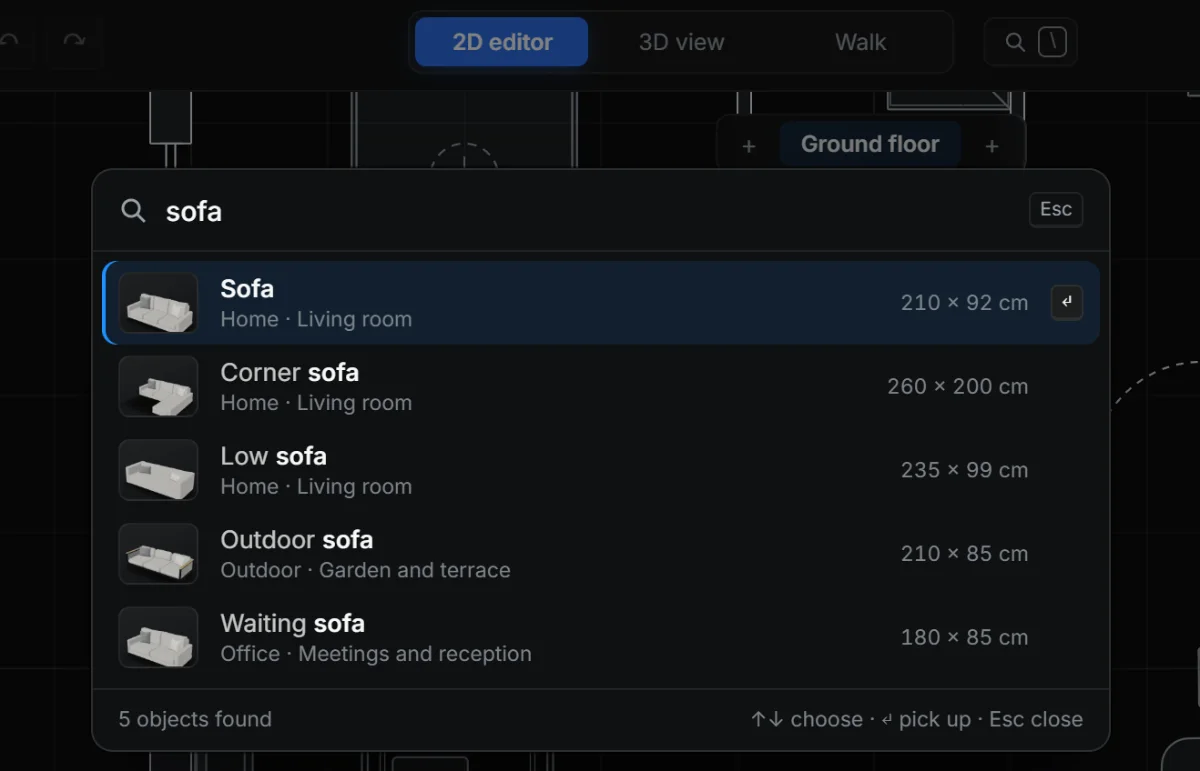
Press \ (or Ctrl+K, or click the magnifying glass at the top), type “sofa” and press Enter, then click to place the Sofa; once it’s down, R turns it by 90° and dragging moves it.
Place a lamp and set its brightness
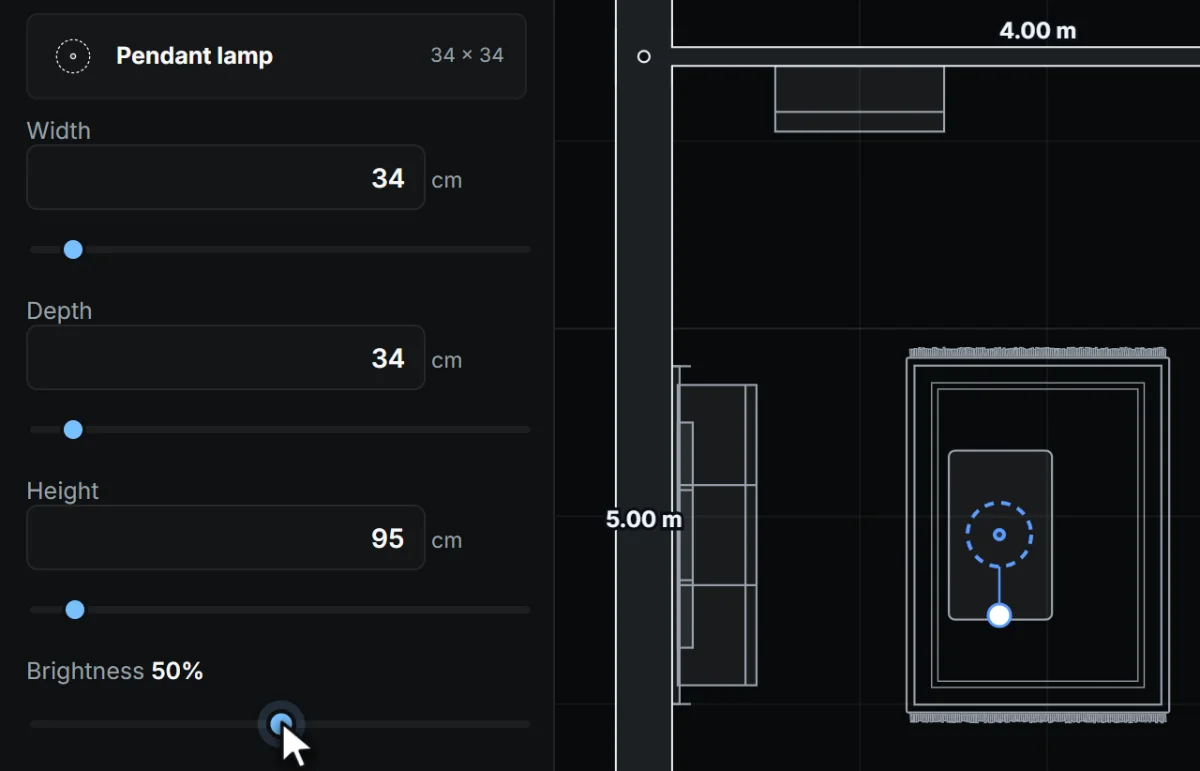
From 3D objects (the tab on the right) › Lights › Ceiling, drag a Pendant lamp into the room: it starts at half brightness, and the Brightness slider turns it up, down or off.
Change a room’s floor
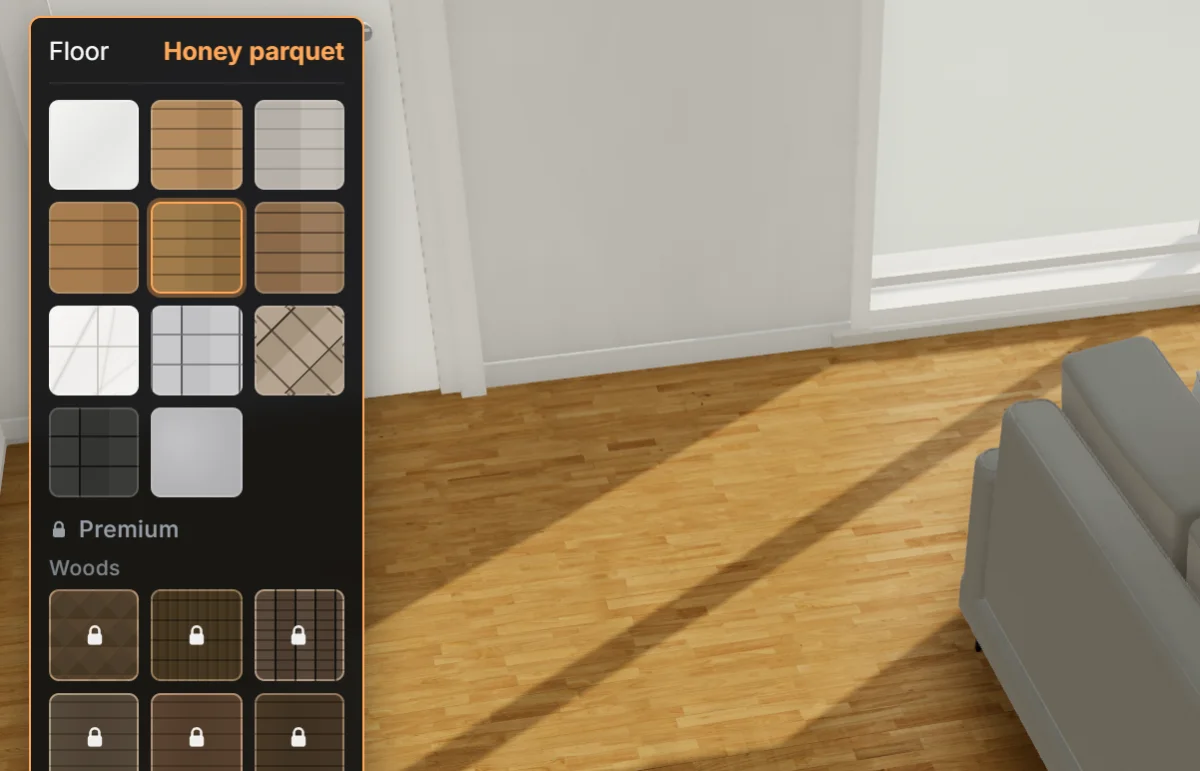
In the 3D view, turn on Section, click a floor and pick a finish: the padlocked premium finishes are free to try in the example house.
Paint a wall
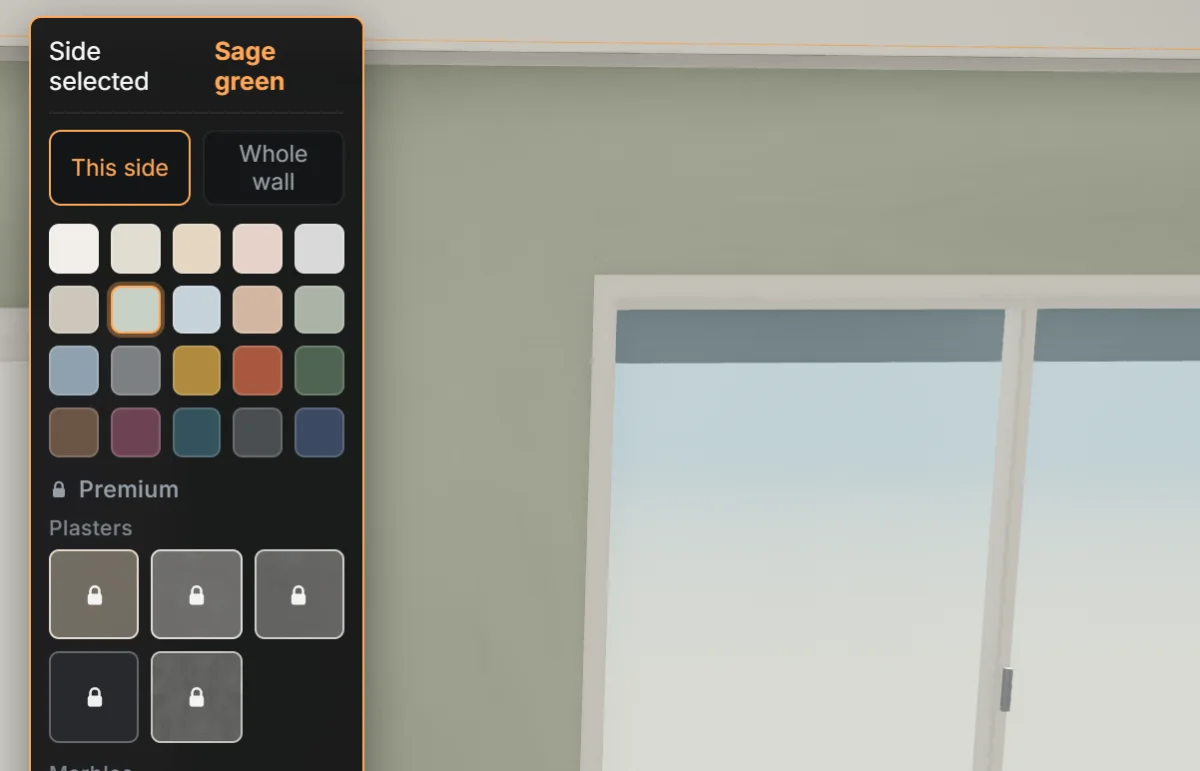
In the 3D view, turn on Section if the wall is inside and click it: a colour paints it, No colour takes it off; This side applies to the side facing you, Whole wall to both.
Colour the ceiling from inside
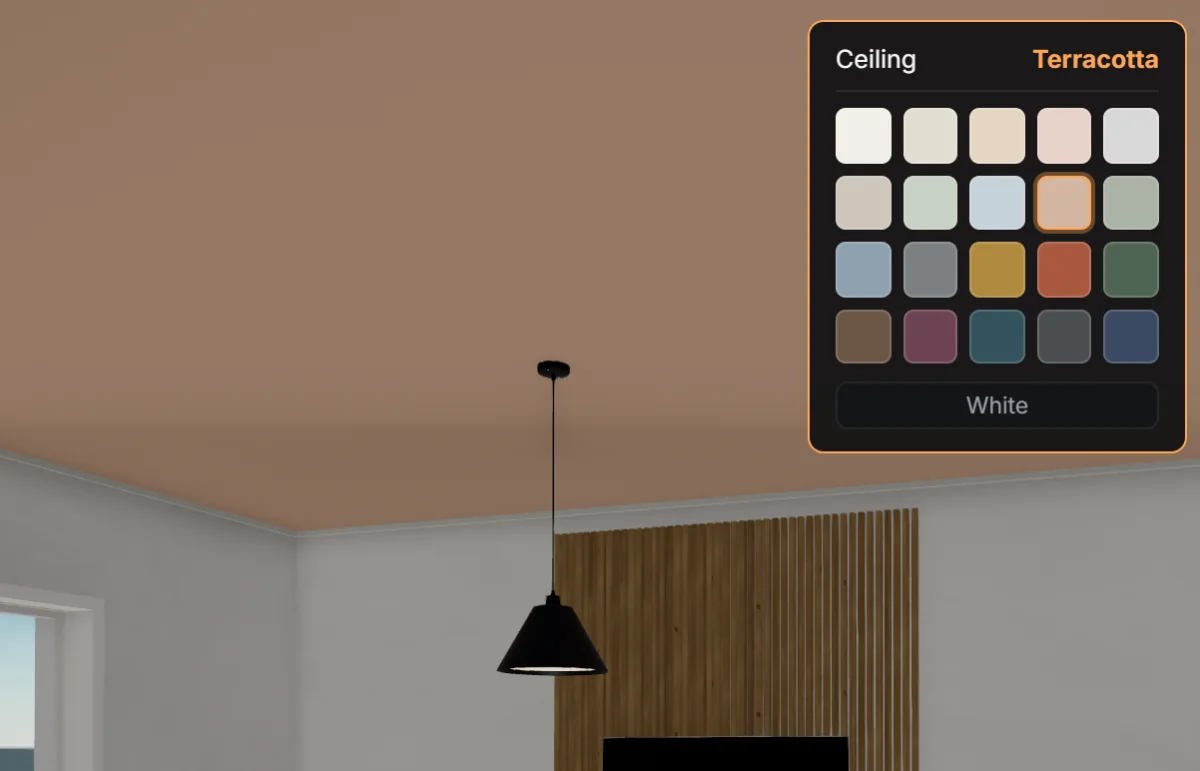
Click Walk to go inside, right-click to open Move and turn and click the ceiling: the Ceiling palette colours it, in that room only.
What you learned
- Find a piece of furniture by typing its name, place it with a click, turn it and move it.
- Place a lamp and set its brightness.
- Change a room’s floor and spot the Premium finishes.
- Paint a wall from the 3D view and a ceiling while walking.
Good to know
- You set the sun in the 3D view: in the side panel, under The sun, use The top of the plan faces to say where north is, then pick the Latitude and the Time of day; at night your lamps light the rooms.
- To copy a piece of furniture, select it, press Ctrl+C, point the mouse where you want it and press Ctrl+V; use Ctrl+X instead of Ctrl+C to move it (⌘ on a Mac). Several pieces copy the same way, even onto another floor: see how to copy and paste furniture. In a piece’s panel, in the left column, you set its size to the centimetre, and the Rotation slider turns it in steps of 5°. Appliances, including the Fridge and the Built-in fridge, are in 3D objects › Home › Kitchen; the whole catalogue is in the 3D room planner guide.
- On an iPad, tap a piece in 3D objects (or find it with the magnifying glass at the top) and it lands in the middle of the view; turn it with the Rotation slider, and change floors, walls and ceilings while walking, with the Move and turn button.