How to do it
Pick the furniture
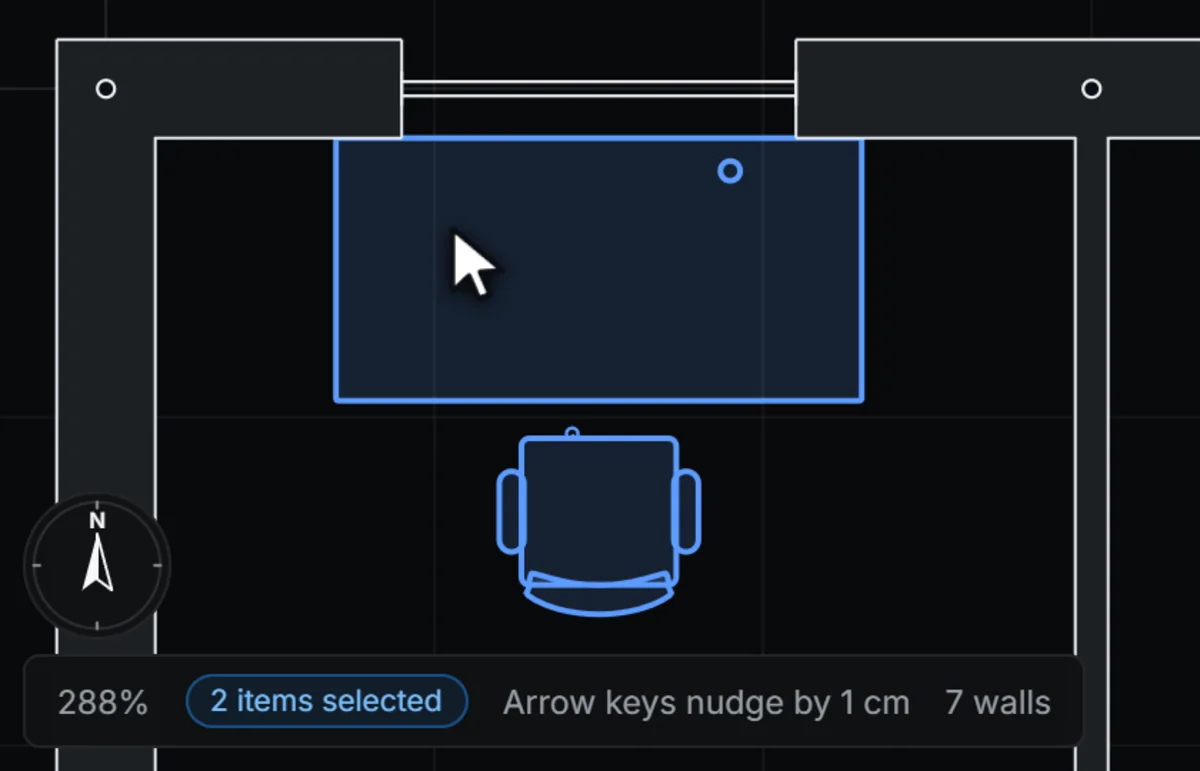
With Select, click the chair, then Shift+click the desk, away from the small white dot that appears in front of the chair once it’s picked: both light up.
Copy them
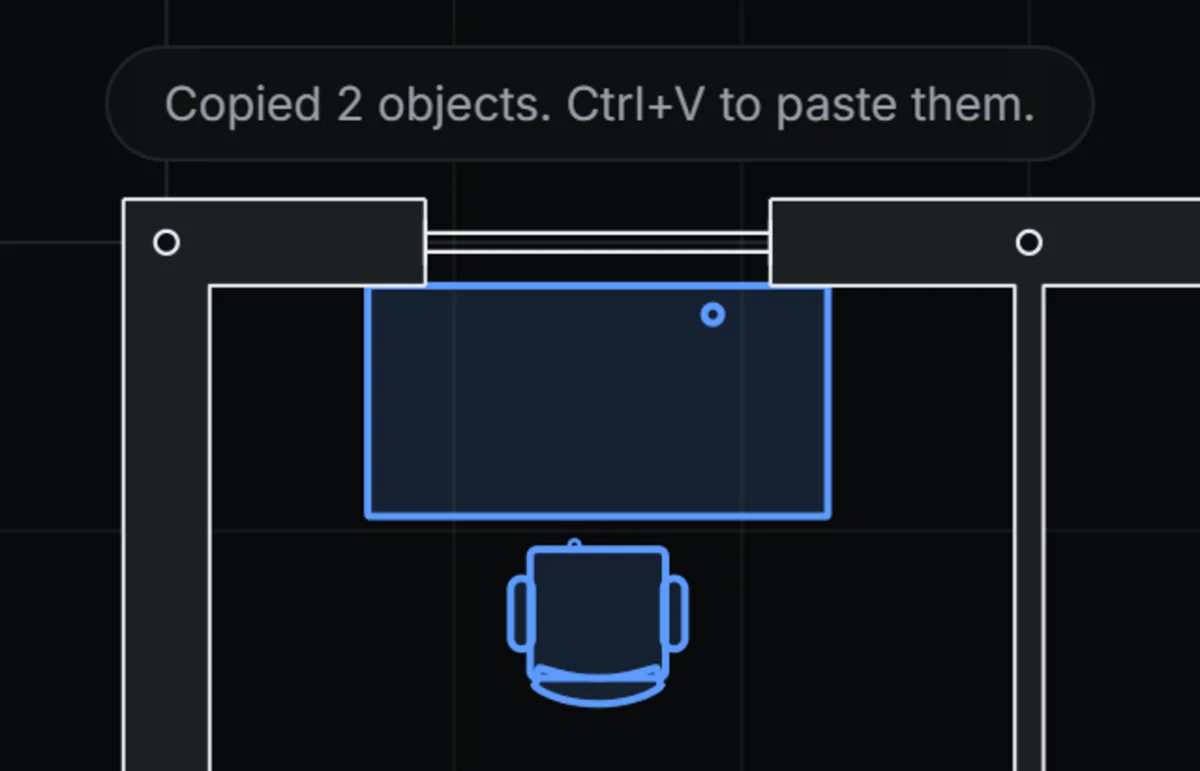
Press Ctrl+C (⌘+C on a Mac): “Copied 2 objects” appears above the plan.
Paste them wherever you like
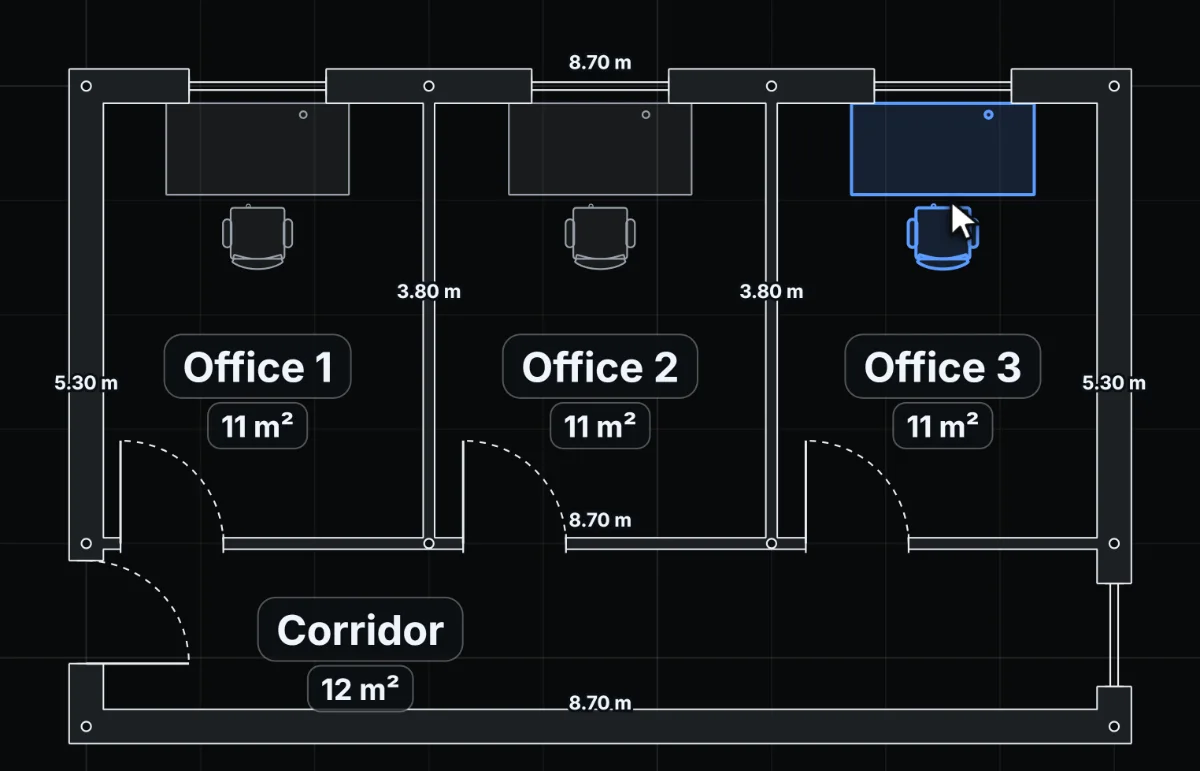
Move the mouse into the next room and press Ctrl+V: an identical set appears under the mouse; for another copy, move the mouse and press Ctrl+V again.
Take them to another floor
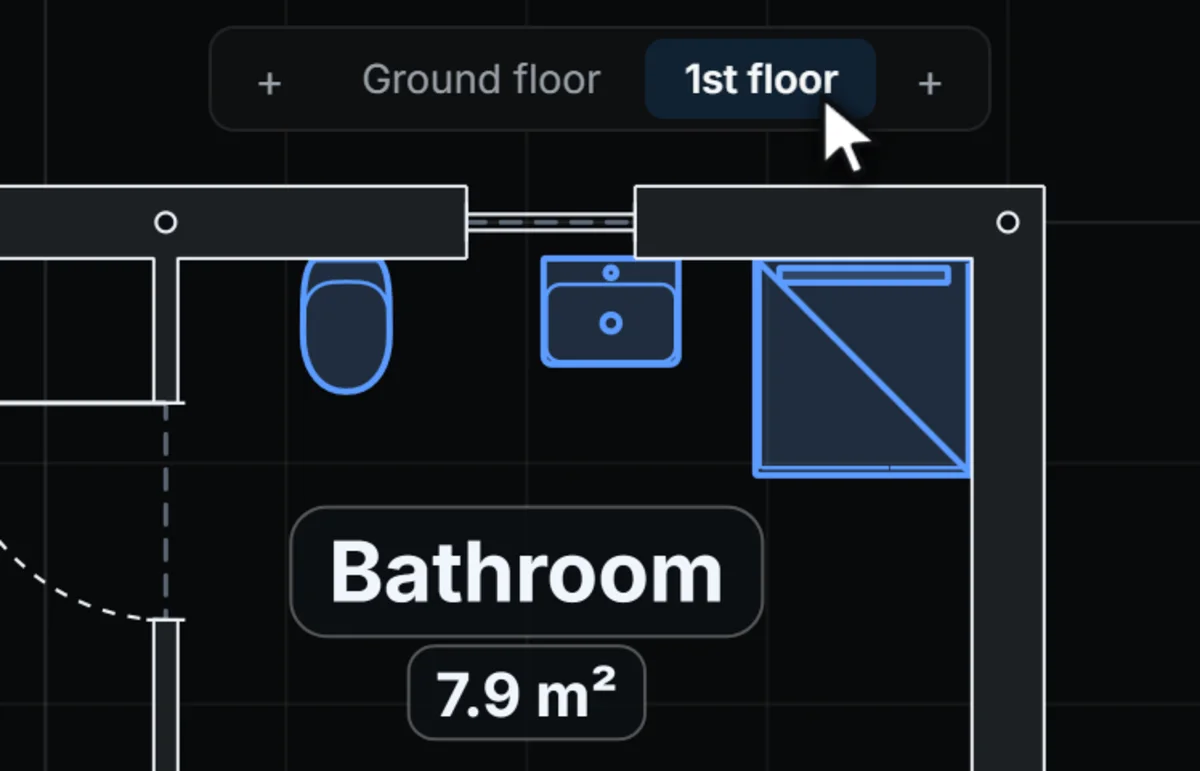
Copy, say, the downstairs bathroom fittings, click the 1st floor tab (none yet?) and, without moving the mouse, press Ctrl+V: they land right above the ones below.
What you learned
- Picking several pieces of furniture at once with Shift+click.
- Copying them with Ctrl+C and pasting them anywhere with Ctrl+V.
- Taking the furniture to another floor or another project.
Good to know
- Furniture, signs and room names can be copied: walls, doors and windows can’t. It’s the quickest way to fill an office with identical desks: there’s also a guide to shop and office layout in 3D.
- Another project? Use the ← arrow at the top left to go back to My projects, open the other one, point the mouse where you want them and press Ctrl+V: what you copied stays ready until you reload the page.
- More shortcuts: Ctrl+Z removes everything the last Ctrl+V added, in one go; Ctrl+X in place of Ctrl+C moves pieces instead of copying them; Ctrl+D puts a copy right next to the original, even for several pieces.