How to do it
Open the search
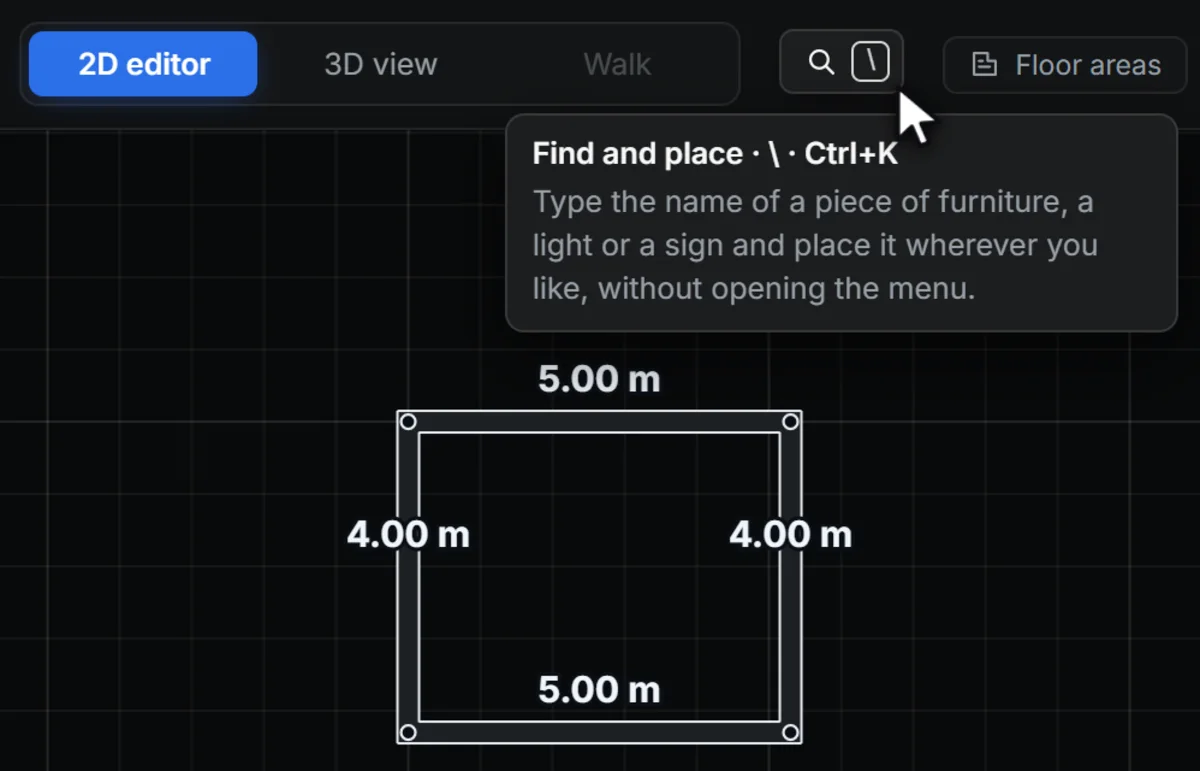
On the plan, press \ (just above Enter on a US keyboard, next to the left Shift on a UK one) or click the Find and place magnifying glass in the top bar: a search box opens.
Type the name
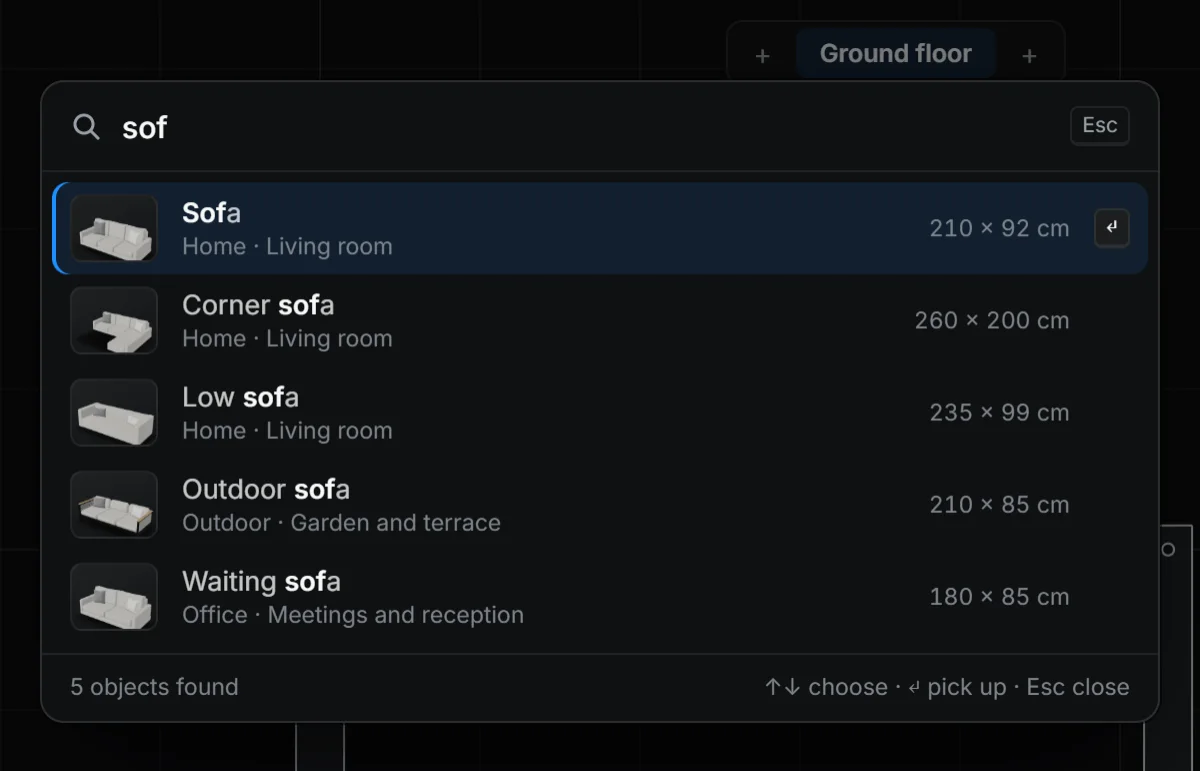
Type the first letters, for example “sof”: the sofas appear below with their photos, and you pick the one you want with ↑ ↓ (or the mouse).
Pick it up and place it
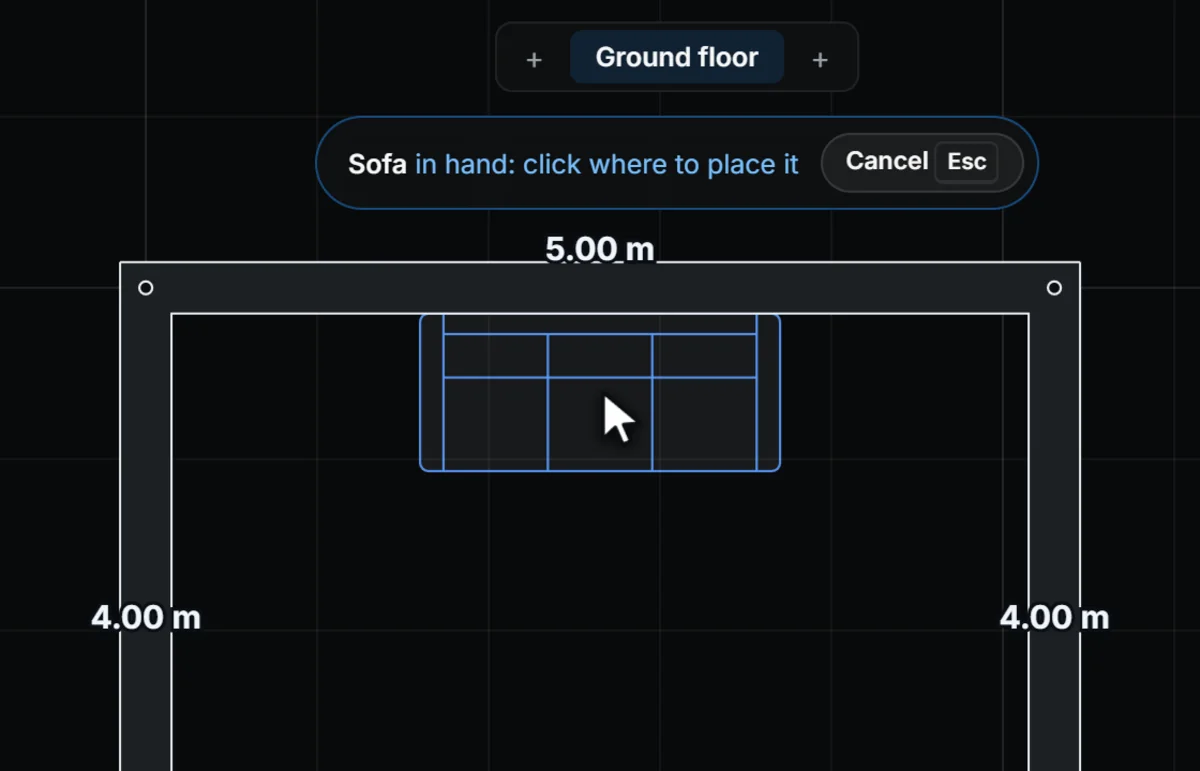
Press Enter: the piece follows the mouse, and one click places it where you want. Once placed it stays selected: R turns it by 90° (Shift+R the other way).
Do it in the 3D view too
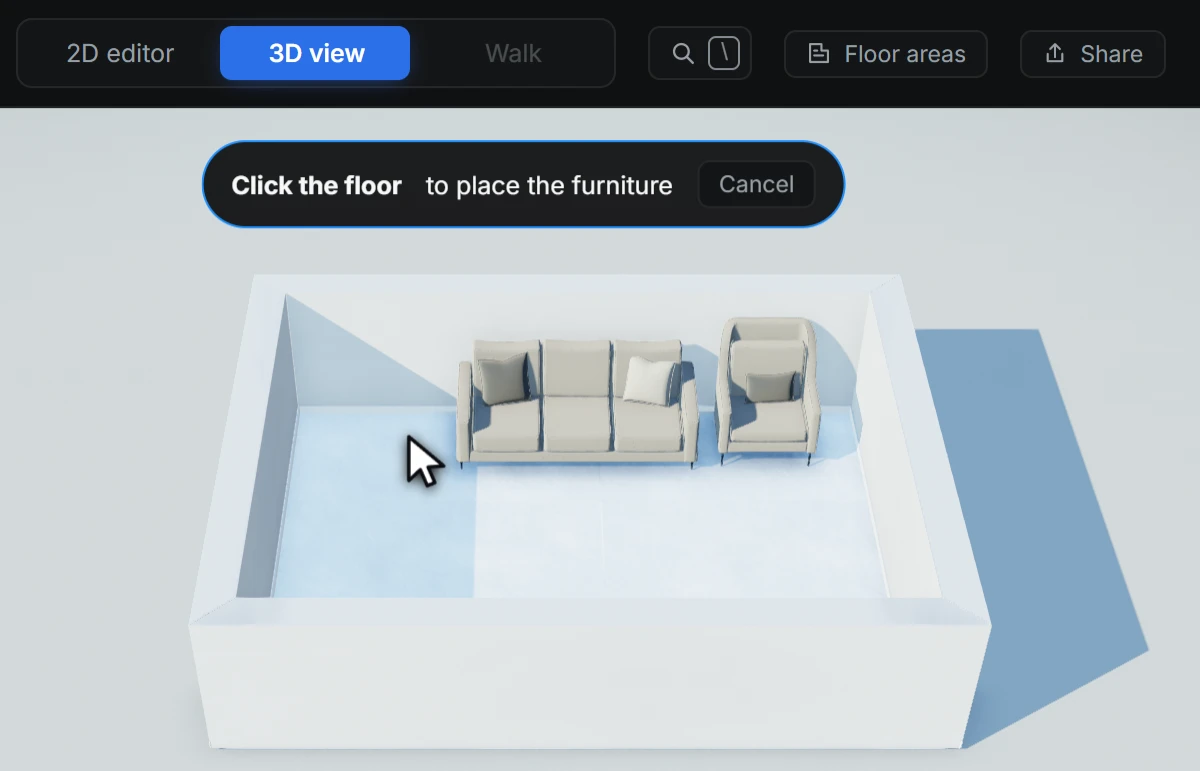
In the 3D view it works the same: press \, type the name and press Enter, then click the floor where you want the piece.
What you learned
- Opening the search with the \ key or the magnifying glass at the top.
- Finding a piece of furniture, a light or a sign by typing its name.
- Placing it with one click, without opening the menu.
- Doing the same in the 3D view by clicking the floor.
Good to know
- On the plan and in the 3D view, not while walking. On an iPad without a keyboard, tap the magnifying glass: on the plan the piece appears in the middle of the view; in the 3D view, tap the floor where you want it.
- It finds lights and signs too, by name (“lamp”, “extinguisher”) or by the sign’s code (“E001”). Ctrl+K (⌘+K on a Mac) also opens the search. The whole catalogue is in the 3D room planner guide.
- Changed your mind? Esc closes the search; with the piece already in hand, Cancel drops it without placing it (on the plan, Esc works too).