How to do it
Choose the shot
In the 3D view (in the example house, press Look in 3D) turn the house with the left mouse button, move it with the right one and zoom in with the scroll wheel.
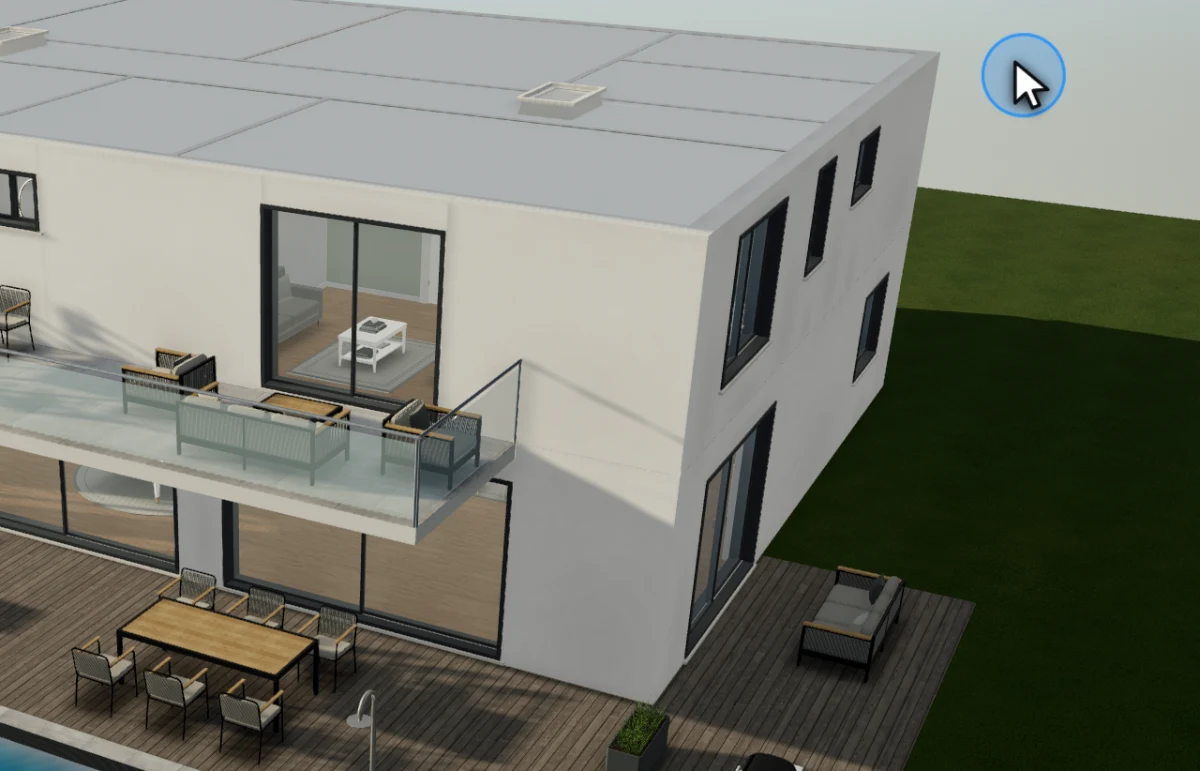
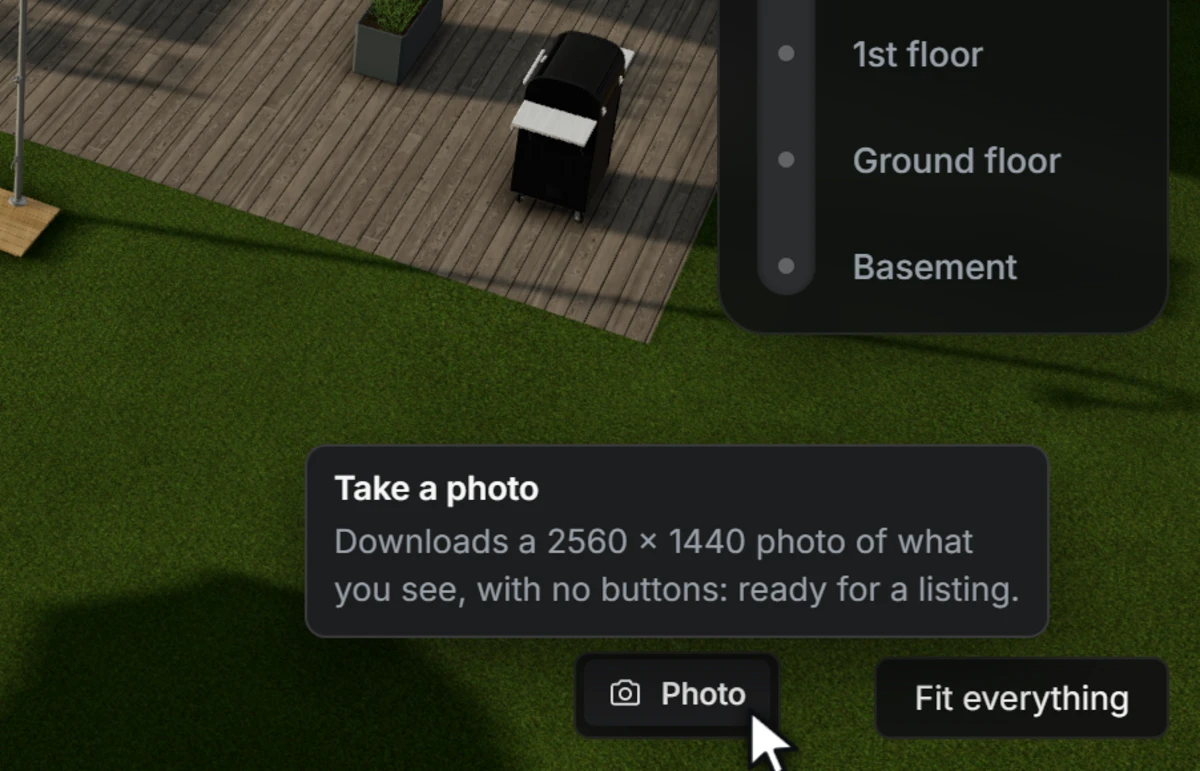
Press Photo
At the bottom right, press Photo: a white flash, and the photo, 2560 × 1440, lands in your Downloads folder, named after the project and the date.
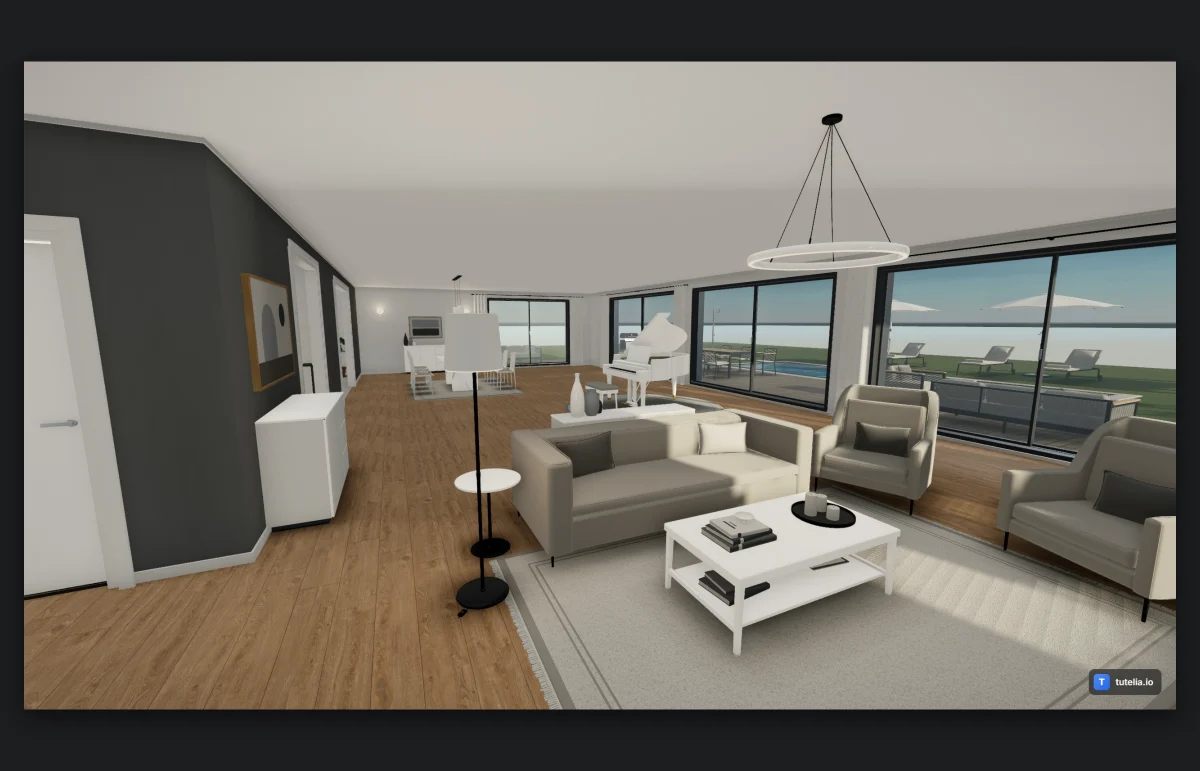
Take one from inside too
While you walk through the house (Walk), press F or the Photo button (on a computer after Esc; always there on an iPad): you get exactly what you see in the room, like this one.
What you learned
- Framing the house in the 3D view.
- Downloading a large photo with the Photo button.
- Taking a photo of a room from inside, while walking, with F or the Photo button.
Good to know
- Always the same wide photo, 2560 × 1440: no buttons or room names, lit for the time of day you picked. Top to bottom it’s what you see; at the sides, depending on your screen, a little more or a little less. To add a floor plan with square metres to the listing too, see the estate agent floor plans guide.
- The tutelia.io mark, small at the bottom right, appears in the example house and on projects without a subscription: with a subscription the photo is clean.
- From a computer or an iPad: on a phone you can only look around, and there’s no Photo button.