How to do it
Find the Floors slider
In the example house choose Look in 3D (in your own project, 3D view): on the right is the Floors slider, with Whole house at the top and the floors below, highest first.
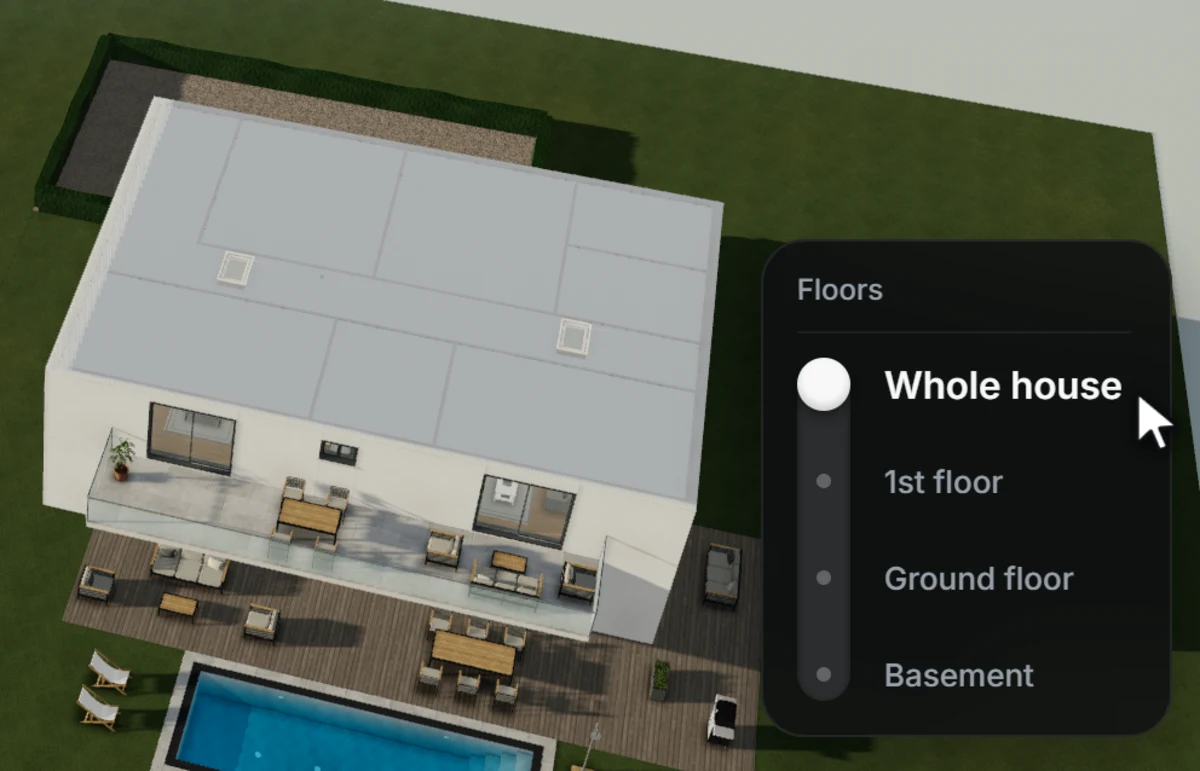
Go down one floor
Click 1st floor, or drag the white knob there or press PgDn: the roof and the floors above disappear and you look into the rooms from above.
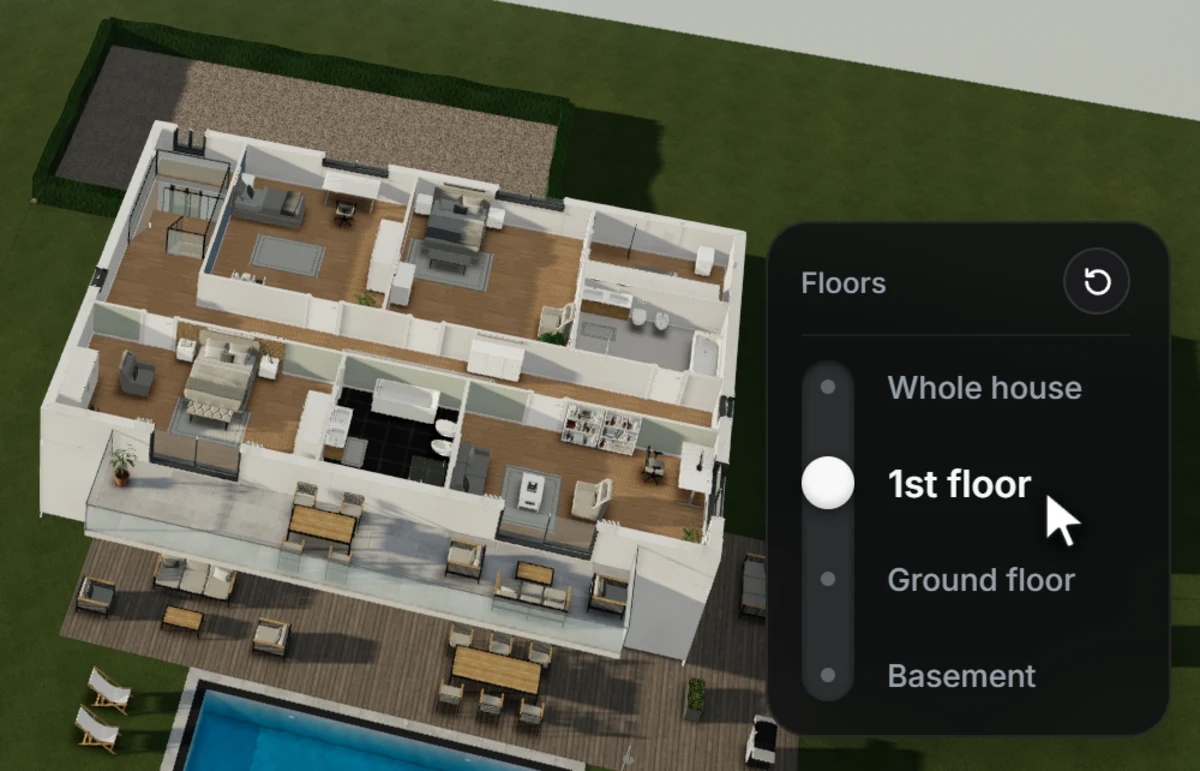
Go down to the ground floor and rotate the house
One more step, Ground floor, and you see the living room and the kitchen; to see them from another side, hold down the left mouse button on the scene and drag (on a phone, use your finger).
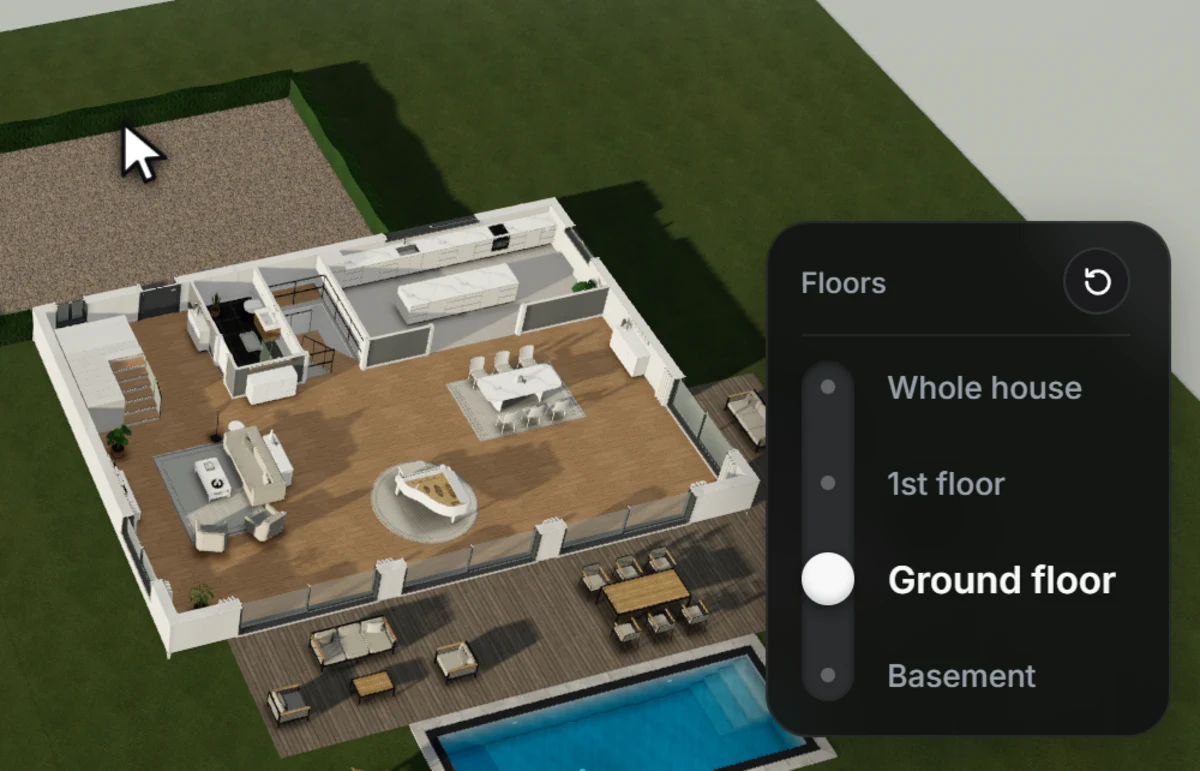
Back to the whole house
Click the round arrow next to Floors, or Whole house at the top of the slider (with the keyboard, press PgUp until you reach the top): the roof and the floors above come back.
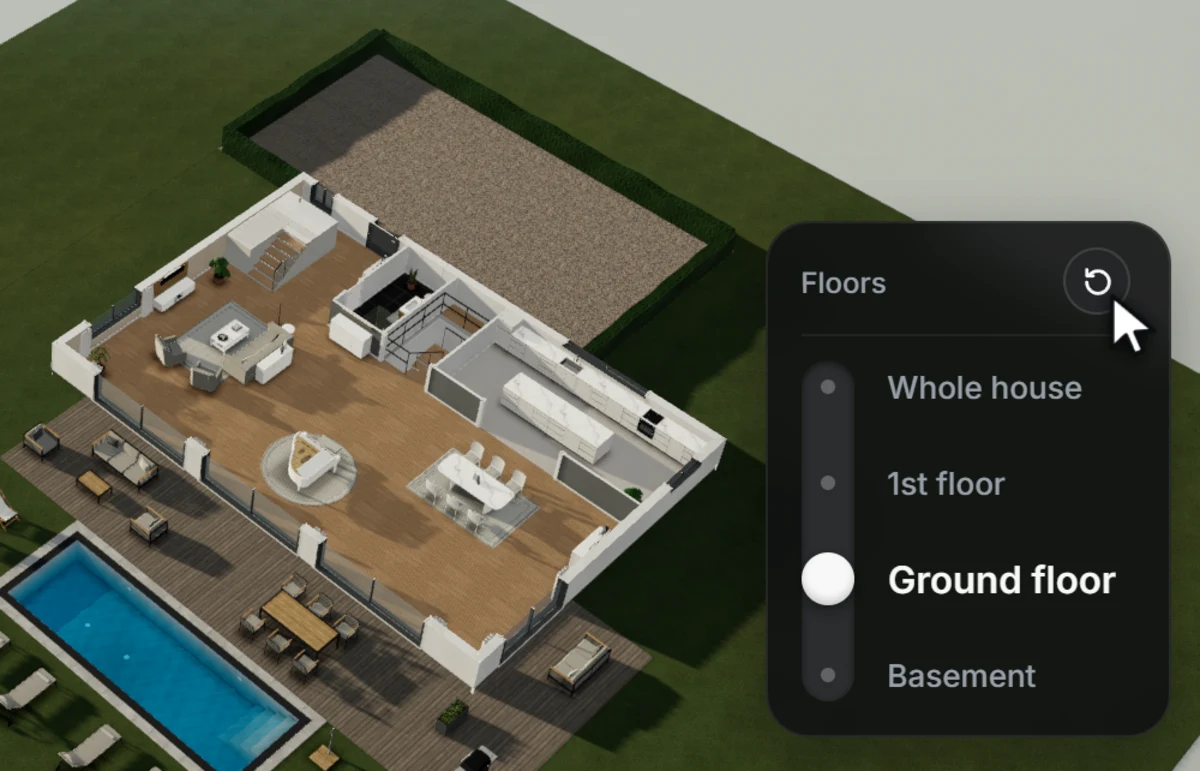
What you learned
- Using the Floors slider in the 3D view.
- Removing the floors above to look inside one floor.
- Rotating the house to see the rooms from another side.
- Going back to the whole house with one click or with PgUp.
Good to know
- It doesn’t change the project: only the way you look at it, and the link doesn’t remember it: whoever opens it always starts from Whole house. The slider isn’t there while you walk.
- Even with just one floor: the slider has Whole house and Ground floor, which lifts off the ceiling so you look into the rooms from above. To draw the floors one above the other, see the two-storey house plan guide.
- On a phone the slider starts collapsed: open it with the arrow next to Floors. Anyone who opens your link finds it in Look in 3D, without signing up.