How to do it
Open the Walk view and step in
In the example house press Walk right in (in your own project, Walk at the top, which only opens once the floor has a starting point), then click the screen: you're in.
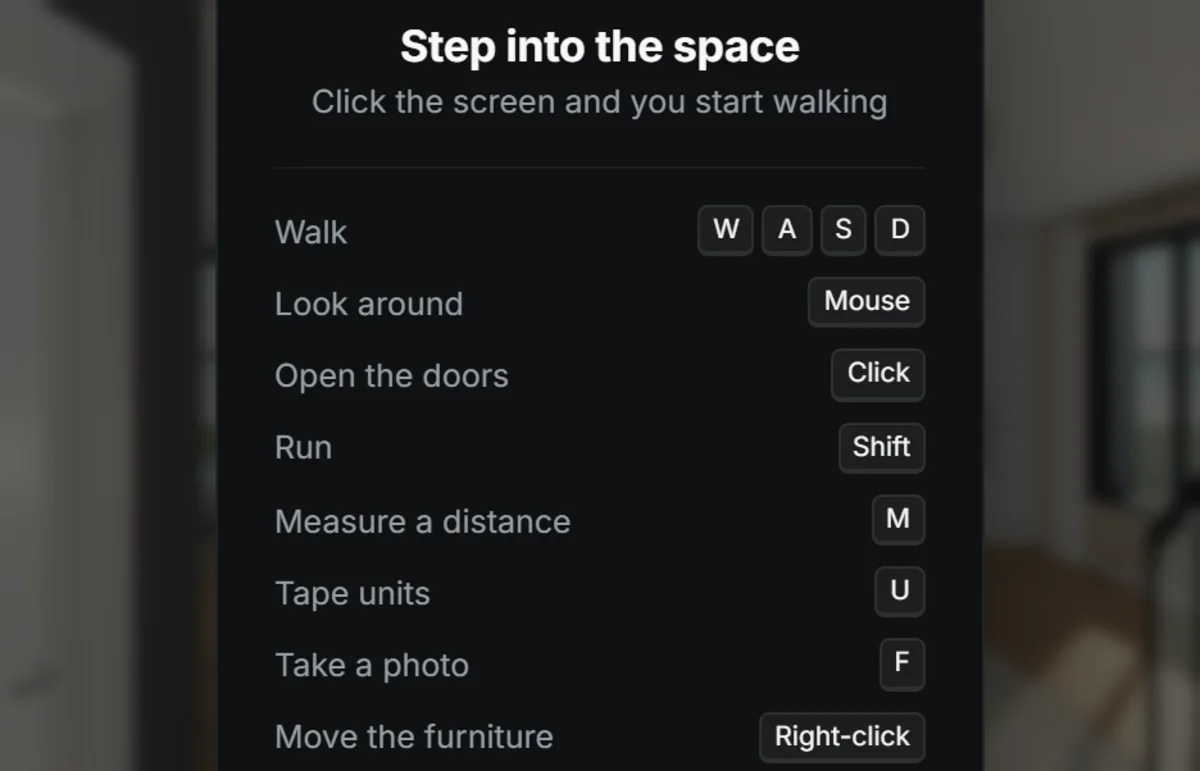
Move around and open doors
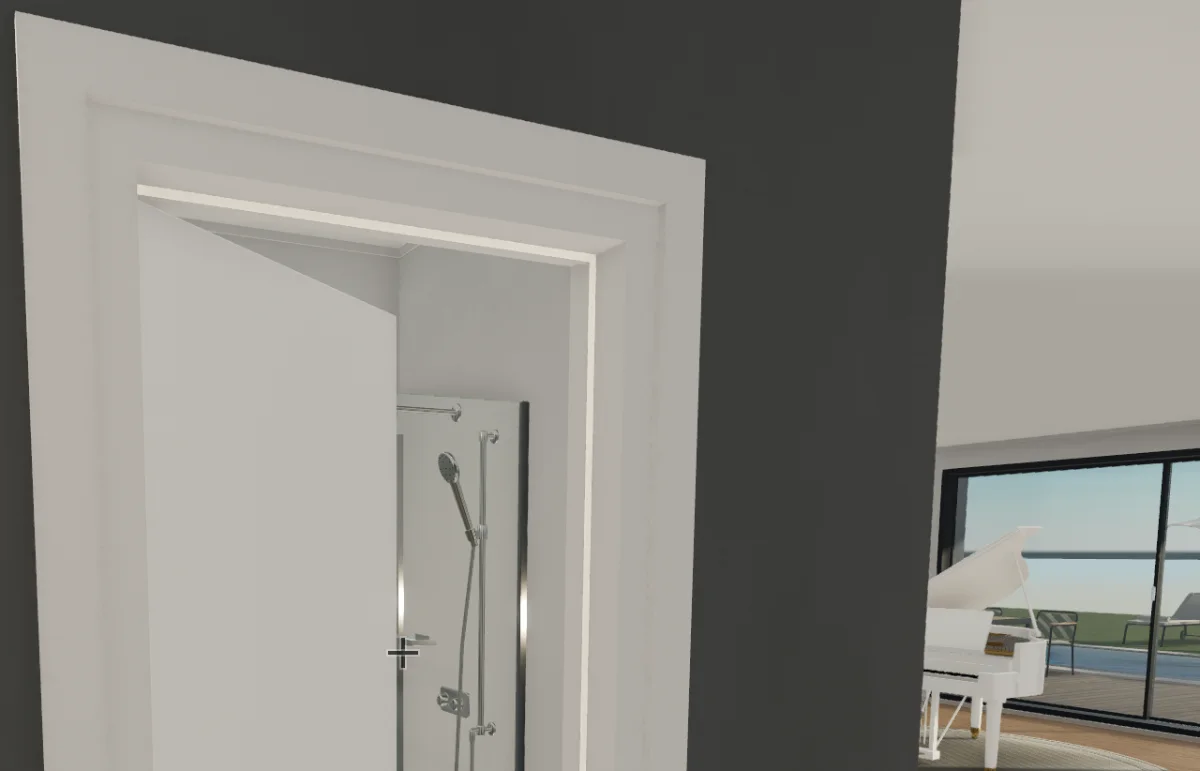
Walk with W A S D (or the arrow keys), look around by moving the mouse, without holding a button, and hold Shift to run; to open a door, go up to it, look at it and click.
Take the stairs
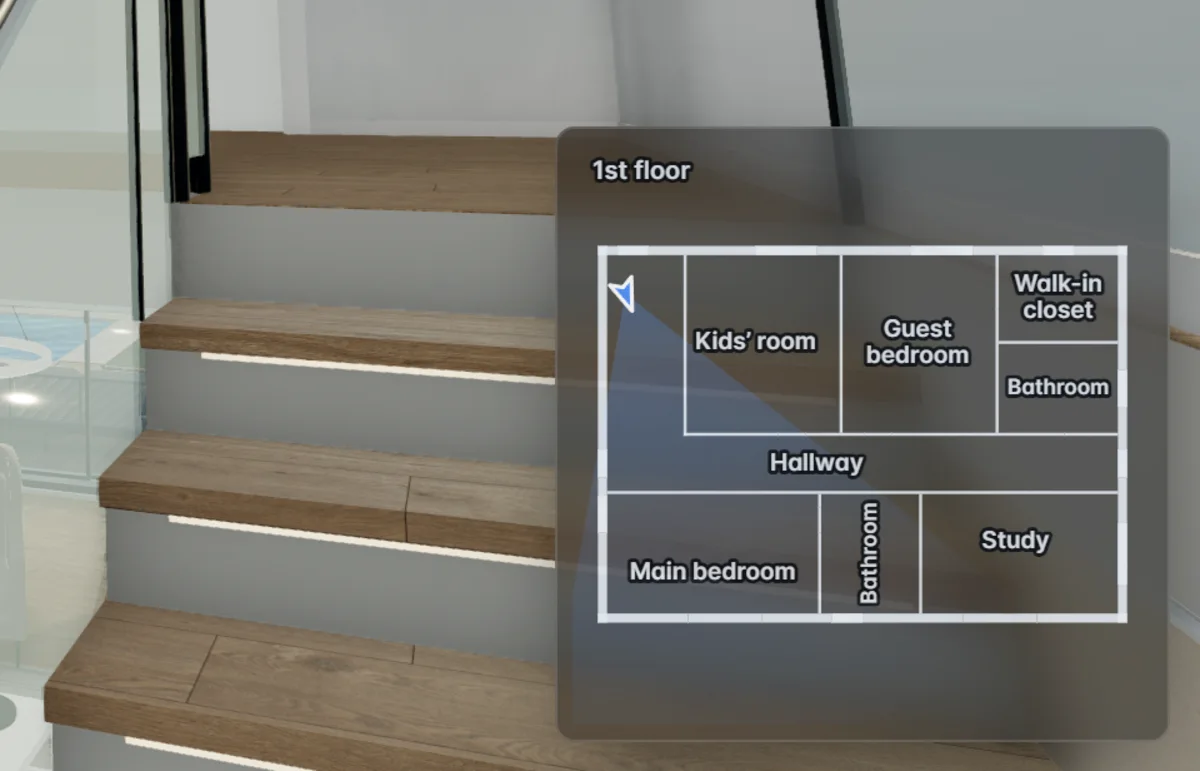
Walk onto the stairs as you would in a real house: the small map at the bottom right shows where you are and which floor you're on.
Change floors, walls and ceilings
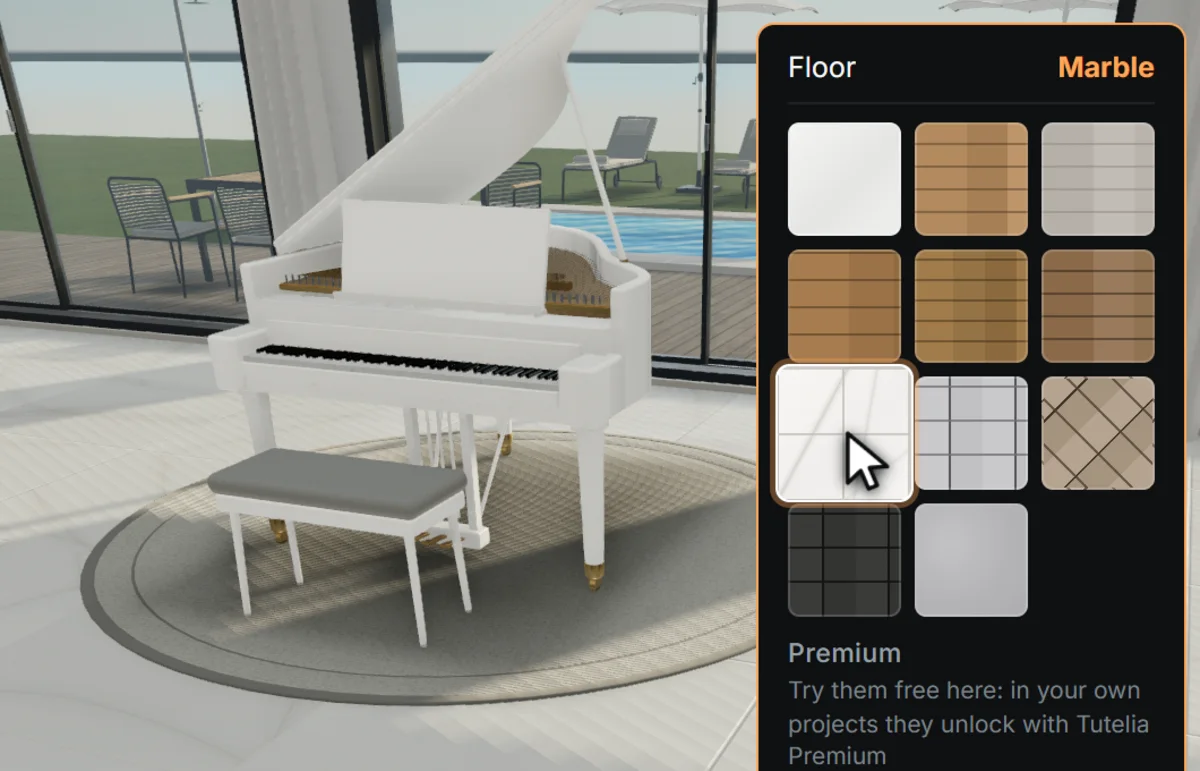
Right-click, click a floor, a wall or a ceiling and pick a finish in the panel on the right (click a piece of furniture instead and you can move it); right-click again to carry on walking.
Change the time and take a photo
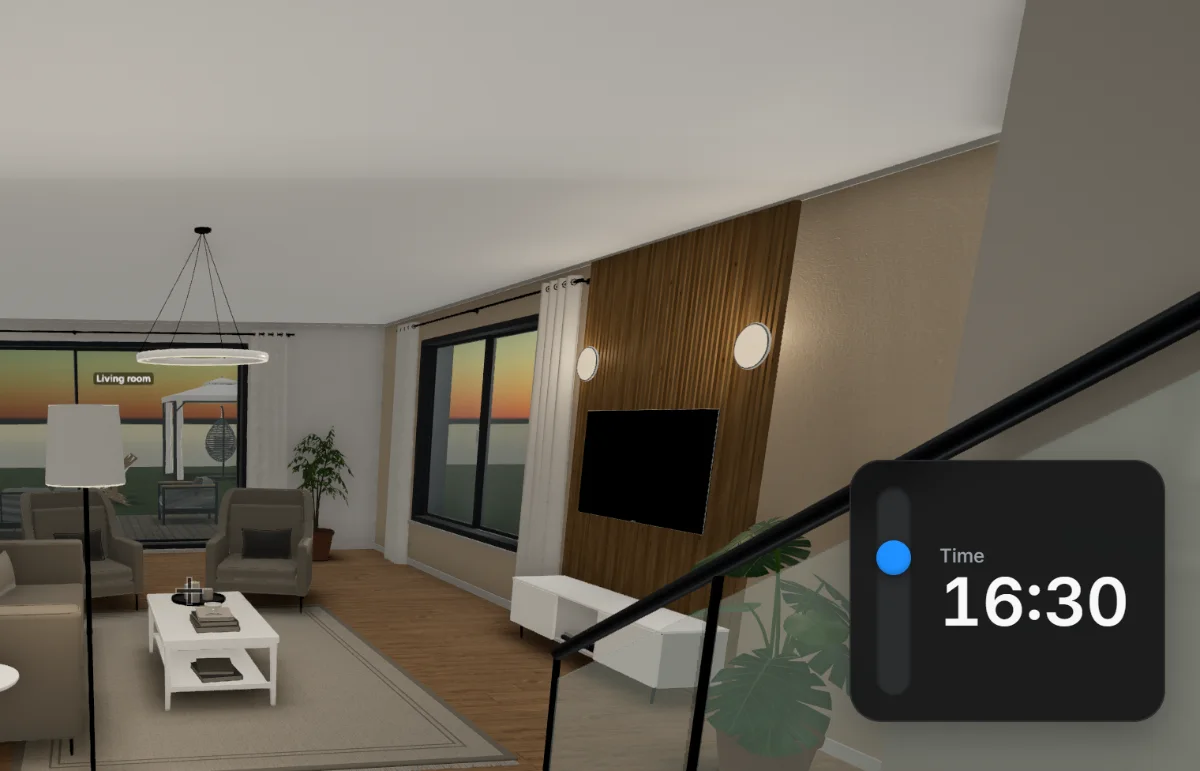
Scroll the mouse wheel and the sun moves across the house; press F and a full-size Photo of what you see is downloaded.
What you learned
- Stepping into a project in first person and moving around with W A S D and the mouse.
- Opening doors with a click and taking the stairs from one floor to another.
- Changing floors, walls and ceilings as you walk, with a right-click.
- Changing the time of day with the scroll wheel and taking a photo of what you see.
Good to know
- Esc gives you the mouse back: in place of the small map you get Photo and Back to the starting point, with Time of day at the top right; click the scene to carry on walking, or press 2D editor or 3D view at the top to leave. There's one starting point per floor, set with the Starting point tool (4).
- The tape measure and photos: M turns on the tape measure (aim at the first point and click, then at the second; U changes the units, and with a finger there's the Tape button); for a good photo for a listing, see Take a photo of the 3D house for your listing.
- With a finger, on a tablet or a phone, you walk with your left thumb, look around by dragging on the right and open a door by tapping it. That's also how people who open your link walk around: a virtual house tour.