How to do it
Share and copy the link
In your project press Share at the top, then Copy the link and paste it wherever you like: a message, a chat or an email.
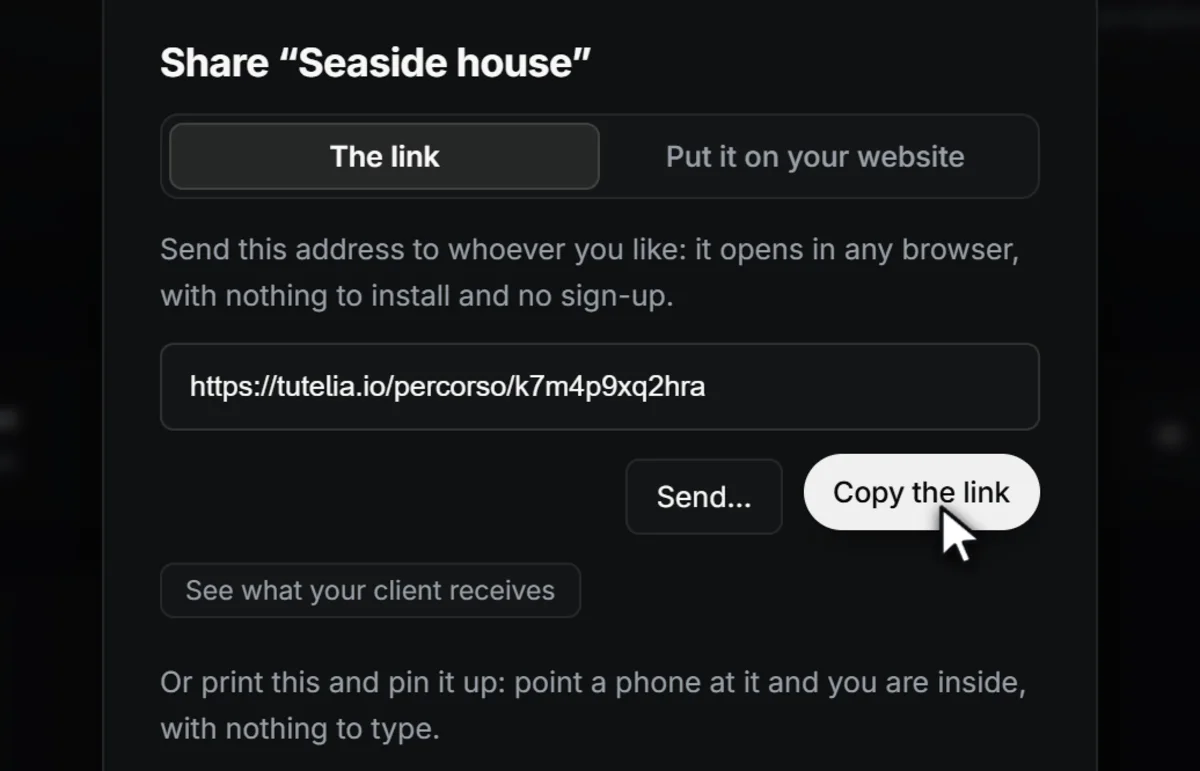
See what your client receives
Press See what your client receives to open the home in a new tab, as they'll see it, with no sign-up: the 3D model and three choices — Open the plan, Look in 3D and Walk right in.
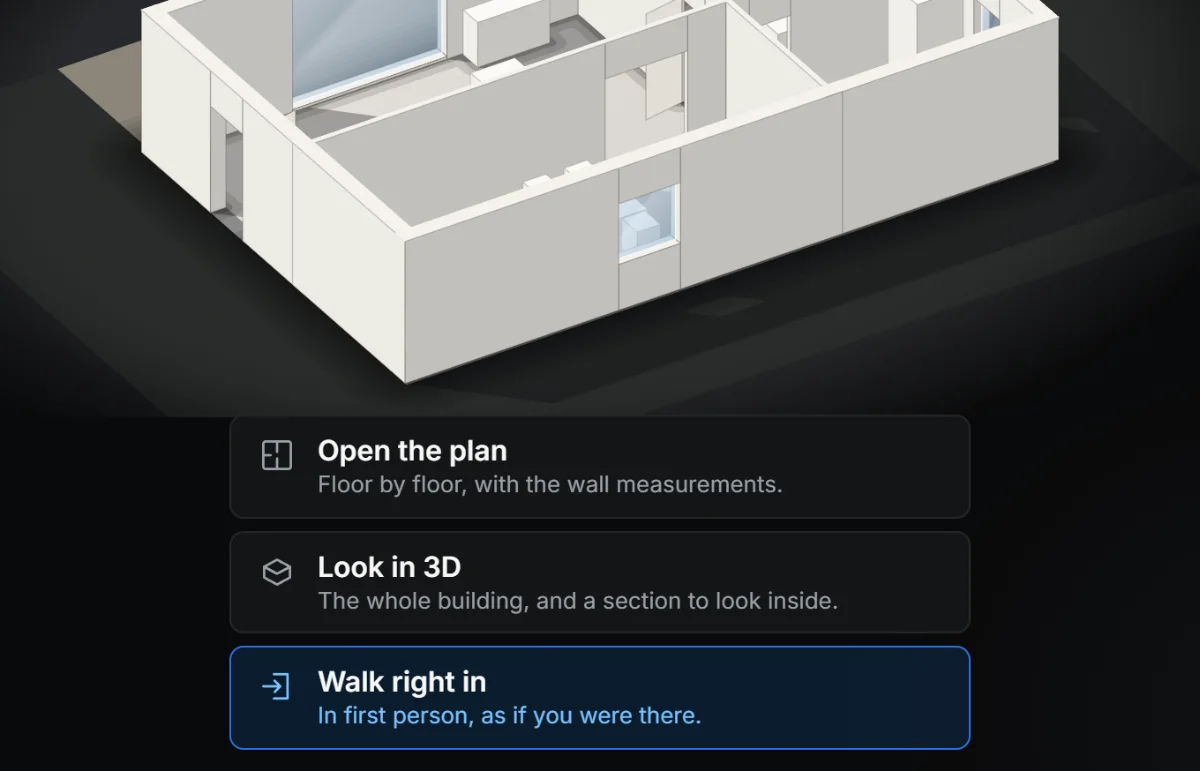
Add your branding
With a subscription, press Your branding in My projects and add your logo and contacts: they show on your links, even ones already sent (how).
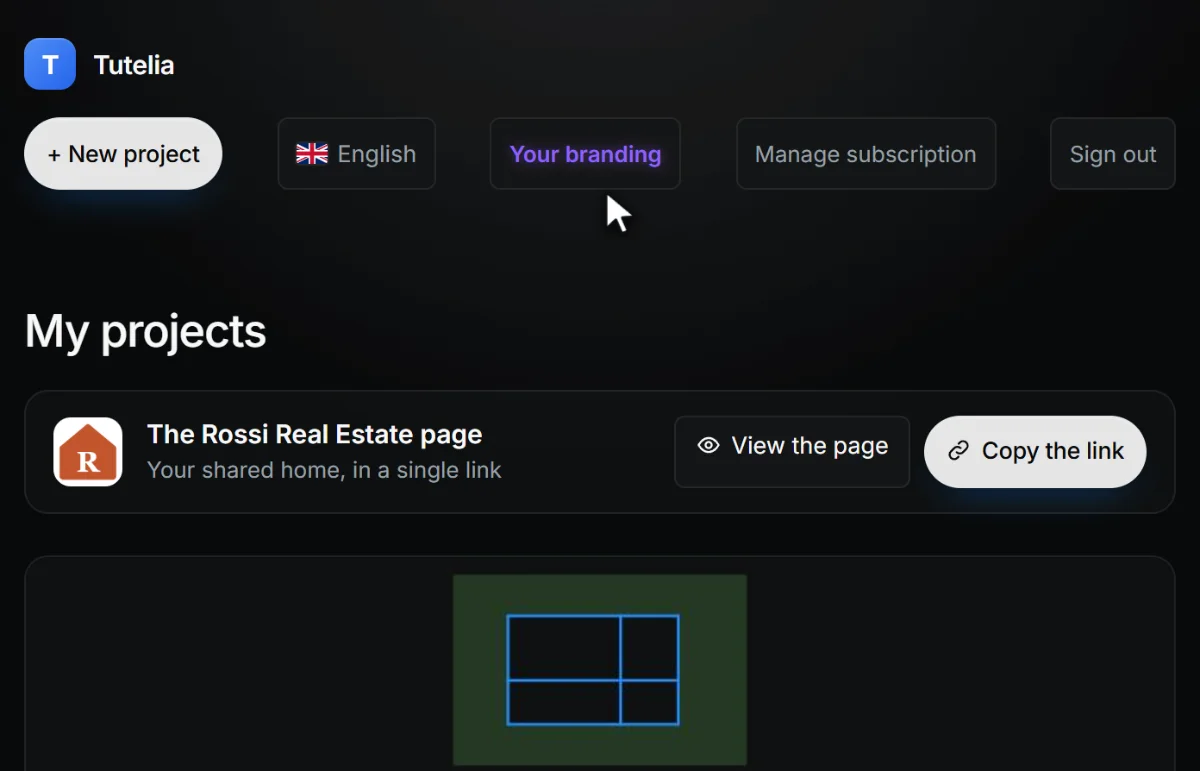
Put it on your website
In the Share window open the Put it on your website tab, press Copy the code and paste the line into your listing page: the home opens right there (how).
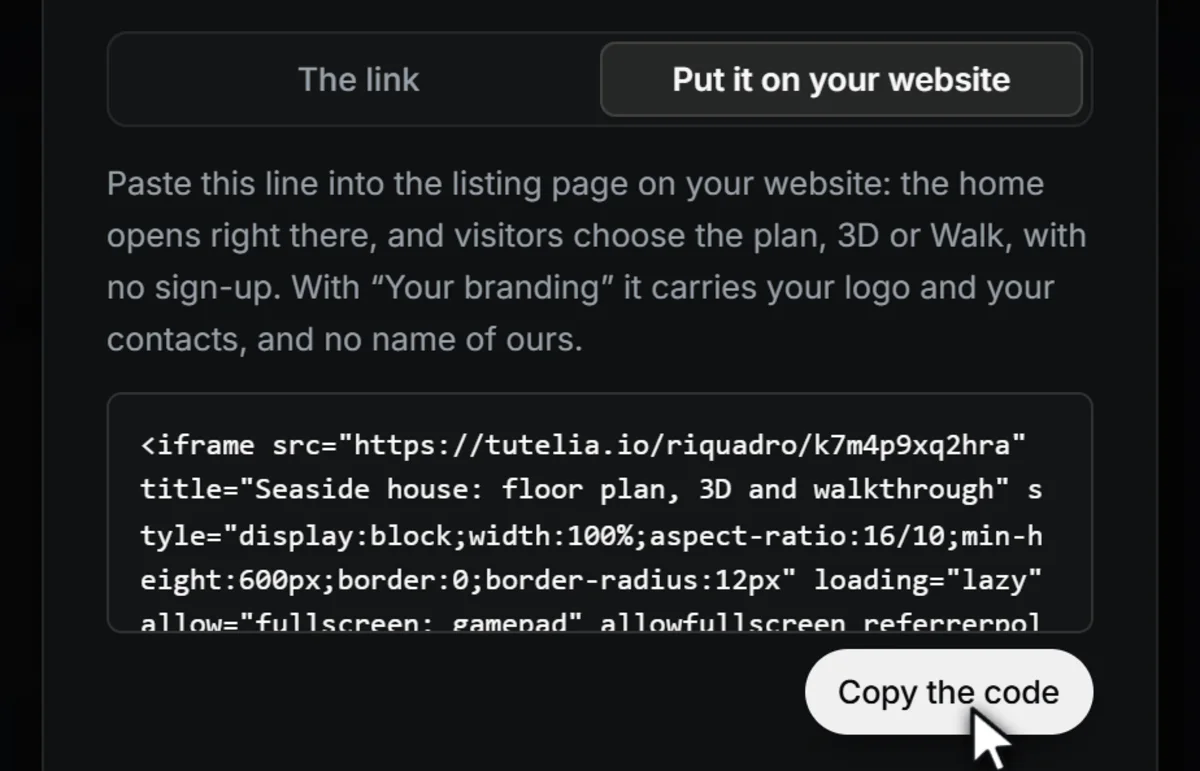
Update the link after a change
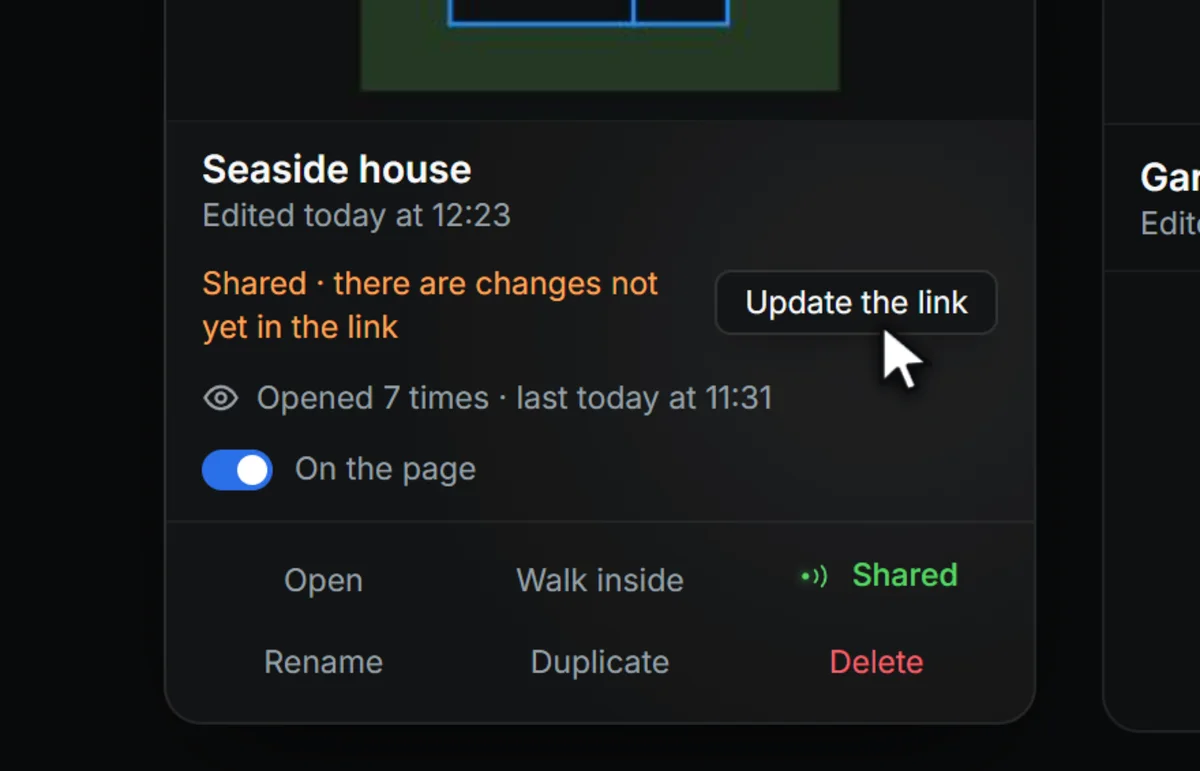
In your project press Share: the link takes in the latest changes. Or, in My projects, when the card says “there are changes not yet in the link”, press Update the link.
What you learned
- Sending a project with a link or a QR code, straight from the editor.
- Seeing the home the way your client receives it, with the model and three choices.
- Putting your branding on your links, the home on your website and every home on one page.
- Updating the link after a change, without changing its address.
Good to know
- You pay for the link, not the drawing. Drawing and walking through are free for up to 2 projects; sending the link needs a subscription.
- The link never expires. It stays on as long as you're subscribed, and so does the QR code under the link: Download the QR code gives you an A4 sheet to put up next to the fire evacuation plan or on a site sign for off-plan sales in 3D, and Window poster an A4 with your photo, your branding and the code. To turn it off sooner, press Share at the top of the project (or Shared on its card in My projects), then Stop sharing at the bottom of the window, and Stop sharing again to confirm: that link won't come back.
- All your homes in a single link. With a subscription, My projects shows your agency page above the project cards: send it with Copy the link in its strip, and the On the page switch under each project decides which homes it shows; just above it, the card says how many times its link has been opened.